
A laptop screen can look normal after a spill and change later. A fixed cloudy patch, dark blotch, watermark, uneven color, or flicker becomes more consistent with liquid exposure when it follows a known spill, rain, condensation, or damp-bag event. None of those signs proves what failed inside the laptop.
This guide is for non-Apple laptops, including Windows laptops, Chromebooks, Surface devices, and similar computers. It focuses on the built-in screen: what the pattern may suggest, what can look similar, and how to keep using the laptop long enough to back up data or get help before the display becomes harder to use.
If the spill just happened
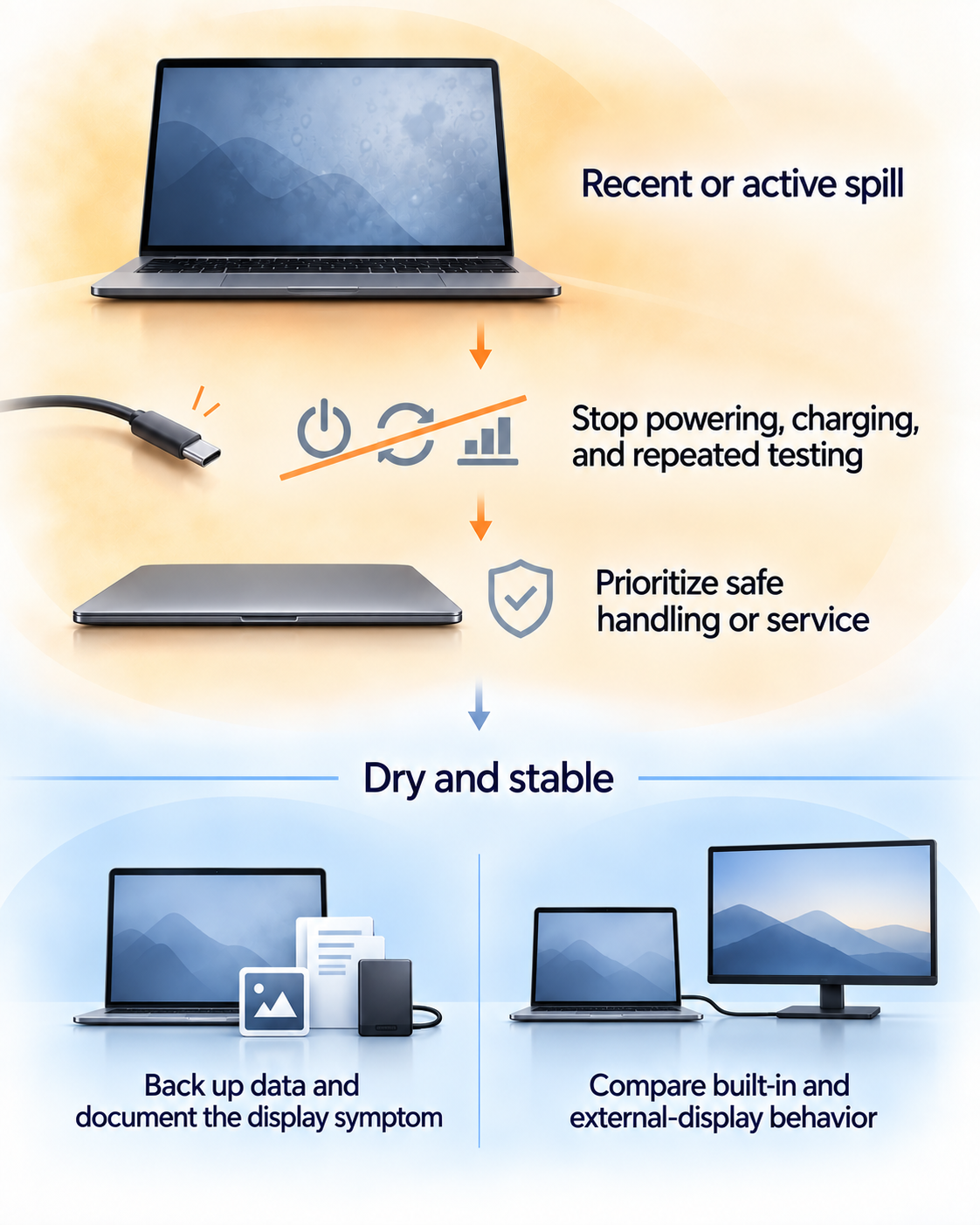
If the laptop or its ports may still be wet, stop troubleshooting the screen first. Disconnect external power, avoid repeated charging or restarts, and follow the manufacturer’s liquid-exposure guidance. Do not use direct heat, press the affected area, or keep opening and closing the lid to see whether the picture changes.
- Stop immediately if the laptop is hot, swollen, sparking, smoking, producing an unusual smell, or behaving unpredictably.
- If the battery is not safely removable, do not open the case just to disconnect it.
- Only use a working laptop long enough to back up data or document the problem once it is dry and stable enough to do so safely.
If the laptop was recently exposed to liquid, disconnect power and stop testing. Once it is dry and stable, back up your data, document the screen, and arrange service or cautious external-monitor access.
What laptop screen water damage can look like
Look at the pattern, where it stays on the screen, what happened beforehand, and whether it is changing.
What you see
- What it suggests—and what it cannot prove
- Moisture or a display-layer problem is possible. A similar patch can also come from panel damage or pressure.
What you see
- What it suggests—and what it cannot prove
- A fixed physical display problem becomes more likely, especially after a spill. The shape alone does not identify liquid as the cause.
What you see
- What it suggests—and what it cannot prove
- The pattern may be compatible with liquid reaching part of the display path. It still requires comparison with pressure and panel damage.
What you see
- What it suggests—and what it cannot prove
- The display path may be unstable. Liquid, a cable or connector issue, panel failure, and other hardware faults can look similar.
What you see
- What it suggests—and what it cannot prove
- The panel or display connection may be affected. Lines and black-screen behavior are not specific to liquid exposure.
What you see
- What it suggests—and what it cannot prove
- An intact surface does not rule out a panel, bezel, cable, or internal display problem.
Swipe table to view all columns.Scroll table to view all columns.
| What you see | What it suggests—and what it cannot prove |
|---|---|
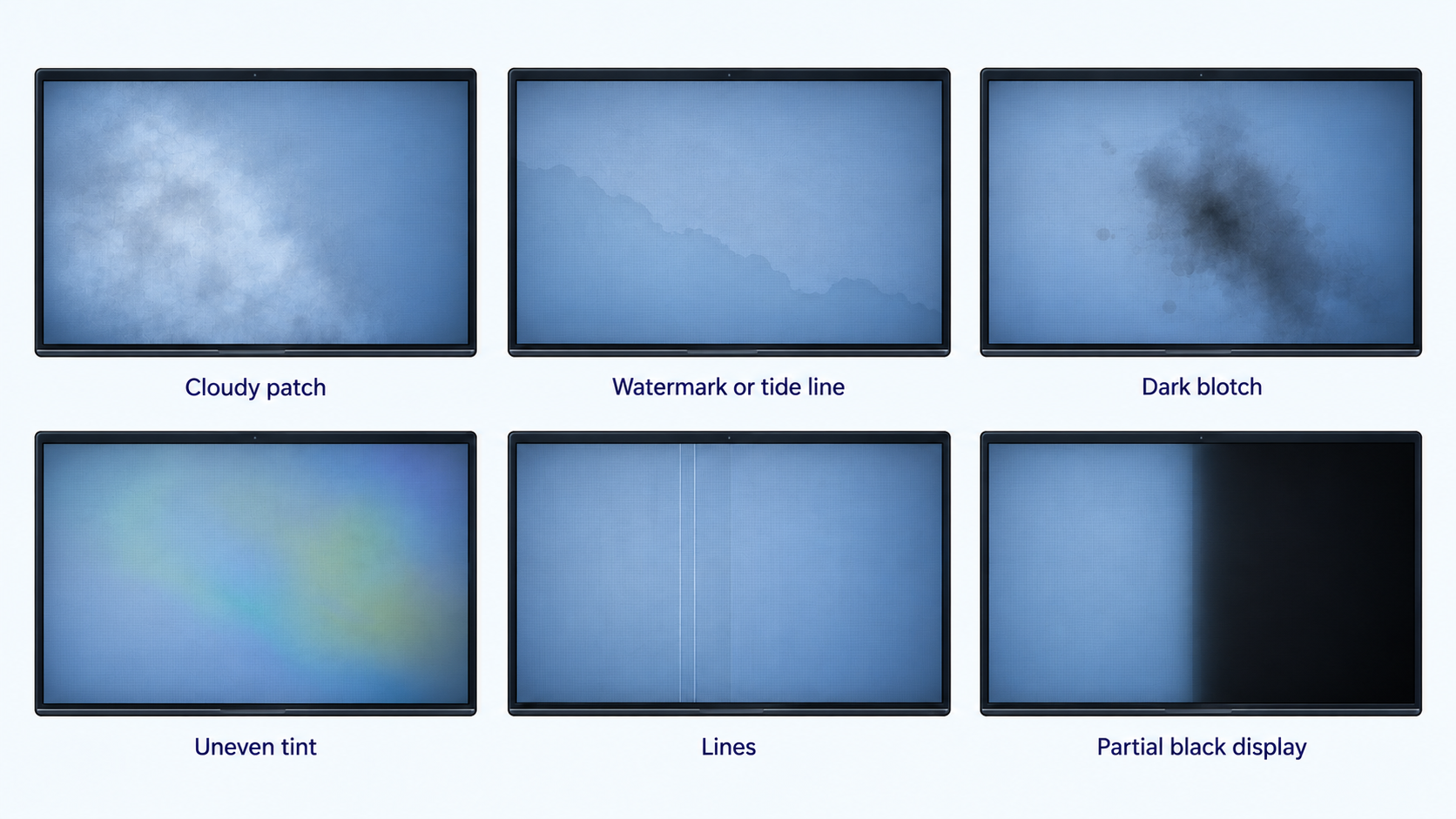
| Cloudy patch, fogging, or pale area under the image | Moisture or a display-layer problem is possible. A similar patch can also come from panel damage or pressure. |
| Dark blotch, shadow, stain, or watermark shape | A fixed physical display problem becomes more likely, especially after a spill. The shape alone does not identify liquid as the cause. |
| Tide-like edge, smear, or uneven color zone | The pattern may be compatible with liquid reaching part of the display path. It still requires comparison with pressure and panel damage. |
| Flicker, brief dimming, or a display that goes dark and returns | The display path may be unstable. Liquid, a cable or connector issue, panel failure, and other hardware faults can look similar. |
| Lines or a partially black display | The panel or display connection may be affected. Lines and black-screen behavior are not specific to liquid exposure. |
| Clean outer glass with a damaged-looking image beneath it | An intact surface does not rule out a panel, bezel, cable, or internal display problem. |
Common patterns include cloudy patches, watermarks or tide lines, dark blotches, uneven tint, lines, and partial black-screen behavior.
The event history matters as much as the pattern
A screen symptom is easier to interpret when you know what happened before it. A spill through the keyboard, rain in a bag, condensation, or liquid near the hinge makes liquid exposure more plausible. A squeeze, drop, closed-lid object, or bag compression points more strongly toward pressure damage.
Write down the timing while it is fresh: when the liquid reached the laptop, whether the screen looked normal at first, when the mark appeared, and whether it has grown, darkened, flickered, or changed with lid position. That timeline is more useful than describing the symptom as “water damage” before the cause is known.
Liquid damage versus pressure, cable, heat, or software
These comparisons can help narrow the possibilities, but they cannot replace an inspection of the panel or motherboard.
Pattern or history
- Explanation that becomes more likely
- Liquid-related display damage becomes more plausible, especially when the pattern remains in one physical area.
Pattern or history
- Explanation that becomes more likely
- Pressure or impact damage becomes more plausible than liquid exposure.
Pattern or history
- Explanation that becomes more likely
- A hinge-area cable or connector fault deserves attention. After a spill, liquid may also have affected that path.
Pattern or history
- Explanation that becomes more likely
- Heat, age, panel wear, or another display fault may fit better.
Pattern or history
- Explanation that becomes more likely
- The issue may involve software, graphics output, or the broader display path rather than only the built-in panel.
Pattern or history
- Explanation that becomes more likely
- A physical panel or display-path issue becomes more likely than wallpaper or application content.
Swipe table to view all columns.Scroll table to view all columns.
| Pattern or history | Explanation that becomes more likely |
|---|---|
| Spill or moisture event followed by a fixed or spreading mark | Liquid-related display damage becomes more plausible, especially when the pattern remains in one physical area. |
| Immediate mark after a squeeze, drop, closed-lid object, or bag compression | Pressure or impact damage becomes more plausible than liquid exposure. |
| Picture changes with lid angle but there was no liquid history | A hinge-area cable or connector fault deserves attention. After a spill, liquid may also have affected that path. |
| Gradual dimming or discoloration without a moisture event | Heat, age, panel wear, or another display fault may fit better. |
| Artifact appears in a screenshot or on an external display | The issue may involve software, graphics output, or the broader display path rather than only the built-in panel. |
| Mark stays fixed across apps, backgrounds, and solid fields | A physical panel or display-path issue becomes more likely than wallpaper or application content. |
If you are not sure whether the problem is liquid-related, start with our screen water-damage overview.
If the laptop was squeezed, dropped, or pressed, read our laptop pressure-damage guide.
If the main symptom is a dark or cloudy area but the cause is unclear, read our dark-spots guide.
Why the screen can look fine first and change later
A laptop display does not have to change at the exact moment of a spill. Moisture, residue, or an unstable connection may produce a visible symptom later, after the outside of the laptop already feels dry. The delay does not prove corrosion or identify the failed component, so “it looked fine at first” does not rule out damage.
Treat the change as progression when the blotch is larger, the affected area is darker or less defined, colors are shifting, new areas appear, flicker becomes more frequent, or the display changes more dramatically with lid position. Do not keep repeating tests just to measure the change.
If the laptop is dry and still working
A working laptop may give you a short access window. Use it deliberately rather than returning to normal work or repeatedly restarting it.
- Back up important files while access is reliable enough to do so safely.
- Take a clear photo or short video of the screen, including the time and visible location of the pattern.
- Record the spill or moisture timeline and any keyboard, trackpad, charging, or power symptoms.
- If the built-in display is becoming unreliable, connect an external monitor instead of continuing to stress the lid or panel.
If you may need service or coverage information, document the screen and timeline with our screen-damage documentation guide.
What an external display or screenshot can tell you
A screenshot can help compare what the computer is rendering with what appears on the built-in panel. If the artifact is visible on the physical screen but absent from the screenshot, a display-only problem becomes more plausible. That does not prove water damage, and a clean screenshot does not rule out every graphics or connection problem.
An external display can show whether the laptop is still producing a usable image outside the built-in panel. It cannot prove that the built-in panel is the only damaged part, that the motherboard is unaffected, or that continued use is safe after recent liquid exposure.
For setup and access, read our external-monitor guide for laptops with unreliable screens.
When the problem may be broader than the screen
If liquid exposure is followed by keyboard or trackpad problems, charging instability, port problems, unexpected shutdowns, unusual heat, an abnormal smell, or unreliable power, treat it as a possible whole-device problem. ScreenDetect can help interpret visible output, but it cannot inspect the battery, motherboard, connectors, or internal display layers.
Can a water-damaged laptop screen be repaired?
Sometimes the display assembly can be replaced, but a screen symptom does not establish that the panel is the only damaged part. Liquid may have affected a cable, connector, keyboard, charging path, or board as well. A repair provider needs to inspect the laptop before anyone can say whether repair, replacement, coverage, or data recovery makes sense.
After the laptop has been inspected, compare repair and replacement rather than assuming a screen replacement will fix everything.
Common questions
Can a laptop screen still work after water damage?
Yes. A laptop can continue to display an image after liquid exposure while the screen or another internal part remains unstable. Continued operation is not proof that the laptop is safe to keep using normally.
Can water damage happen without a cracked screen?
Yes. The outer surface can remain intact while the display panel, bezel area, cable path, connector, or another internal part is affected. A clean-looking surface does not identify the cause or rule out damage.
Will water under a laptop screen dry out?
A visible mark may stabilize, but you should not treat drying as a reliable repair. If the area is spreading, darkening, flickering, or changing with lid angle, save your data if it is safe to do so and seek an inspection rather than repeatedly testing it.
If the screen changes with lid angle, does that rule out liquid damage?
No. Lid-angle behavior can come from a cable or connector problem, but liquid exposure may also affect that display path. The event history and progression still matter.
Related guides
Start here for a broader comparison of screen water-damage patterns and look-alikes.
Read this when the dark or cloudy area matters more than the exposure history.
Record the pattern and timeline before the display changes again.
Read this when the laptop still runs but its built-in screen is no longer reliable.
Compare repair and replacement after the laptop has been inspected.
Sources
- Safety precautions when working with electrical equipment
Dell Support · Safety guidance for shutting down, unplugging, and handling liquid-exposed laptops.
- Customer Induced Damage Guide — Laptops and Desktops
Lenovo Support · Reference for physical damage patterns and liquid-related display symptoms.
- Get service for an out-of-warranty or damaged Surface
Microsoft Support · Service and backup guidance for damaged Surface devices.
- How to determine if a notebook LCD screen has physical damage
Sony Support · Reference for physical LCD symptoms such as blotches, lines, moisture, and color distortion.
- I spilled liquid on my laptop—now what?
iFixit · Additional context on laptop liquid exposure and why casual drying may not resolve internal damage.