
What screen water damage can look like
Water-related screen damage does not have one signature appearance. The useful clue is usually the combination of a new, fixed display change and a plausible moisture event. A similar-looking mark can also come from pressure, heat, a panel fault, or the system producing the image.
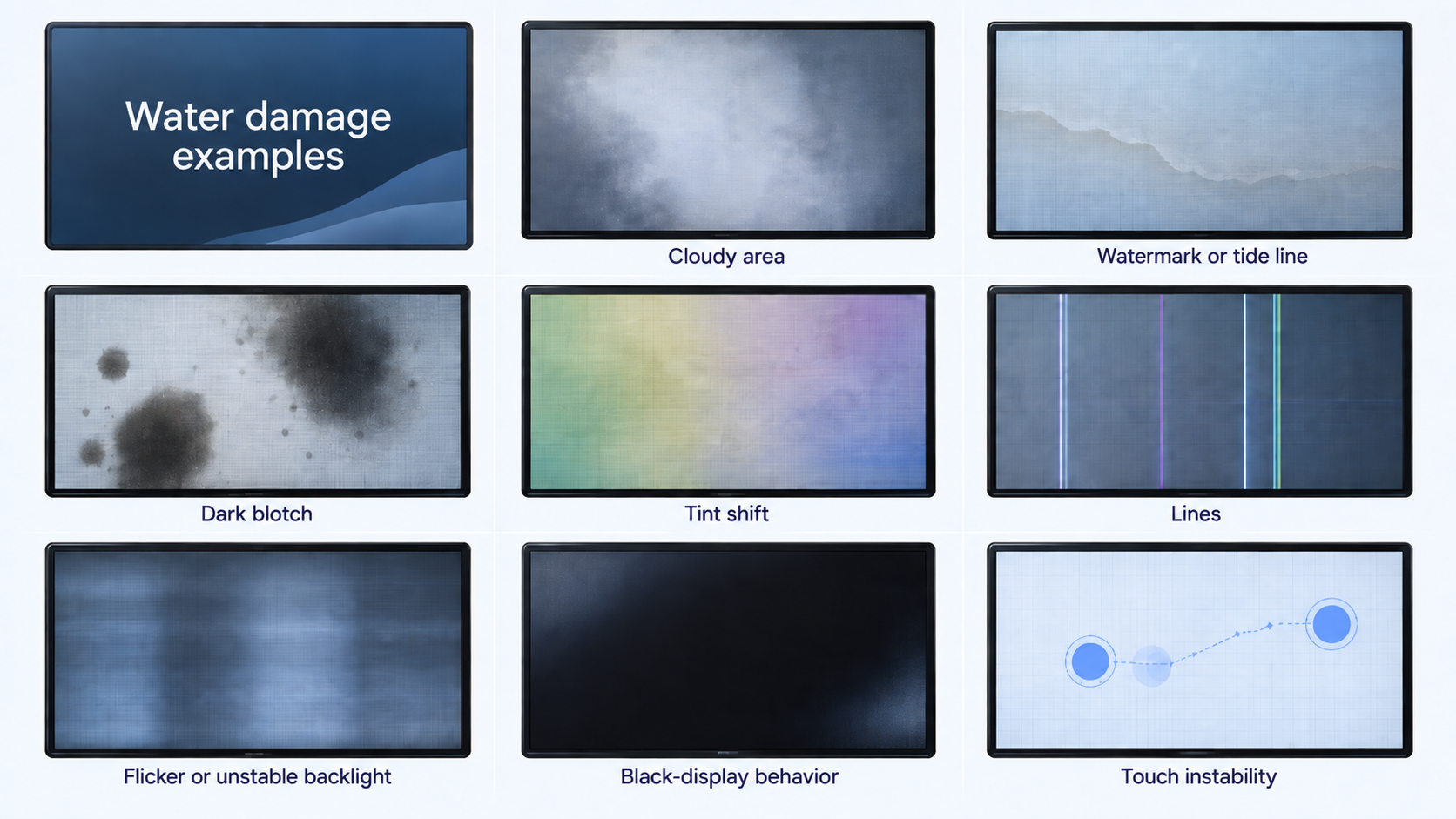
Fogging or moisture beneath the surface
Haze, droplets, or a cloudy film beneath the glass or panel are among the stronger visual clues when they follow a spill, rain, condensation, or damp storage. Surface condensation can look similar, so check whether the moisture is actually beneath the display surface before drawing a conclusion.
A fixed watermark or tide line
A ring, boundary, stain, or residue-like edge that stays in the same place can fit liquid exposure, especially when it appeared after the device was wet. Cleaning residue, pressure, adhesive changes, and panel damage can create similar marks.
A dark or cloudy blotch
A new localized shadow, stain, or ink-like area can be consistent with moisture reaching the display assembly. It is not specific to water: pressure, impact, and other panel failures can produce the same appearance.
Discoloration, lines, or flicker
Tint shifts, washed-out areas, colored lines, flicker, and uneven brightness can follow liquid exposure. They can also come from a cable, hinge, power issue, GPU, driver, heat, or panel fault, so the event history matters.
Black display or unstable touch
A partial or complete black display is serious but does not identify water as the cause. Ghost touch, random taps, delayed response, and dead touch areas can follow moisture, but they can also come from the digitizer, a protector, software, or physical damage. Do not run touch tests while the device may still be wet.
What happened before the screen changed?
Think about the event before you focus on the symptom name. A direct spill, rain, condensation, steam, damp bag, cleaning liquid, or moisture alert makes liquid exposure more relevant. A squeeze, drop, packed bag, hot car, direct sun, or lid-pressure event points toward a different branch.
When the symptom appears later
A screen can look normal immediately after exposure and change later. That possibility is a reason to preserve access and avoid unnecessary charging or repeated testing, not proof that the damage will spread. A dry exterior also does not show what happened inside.
What else can look like water damage?
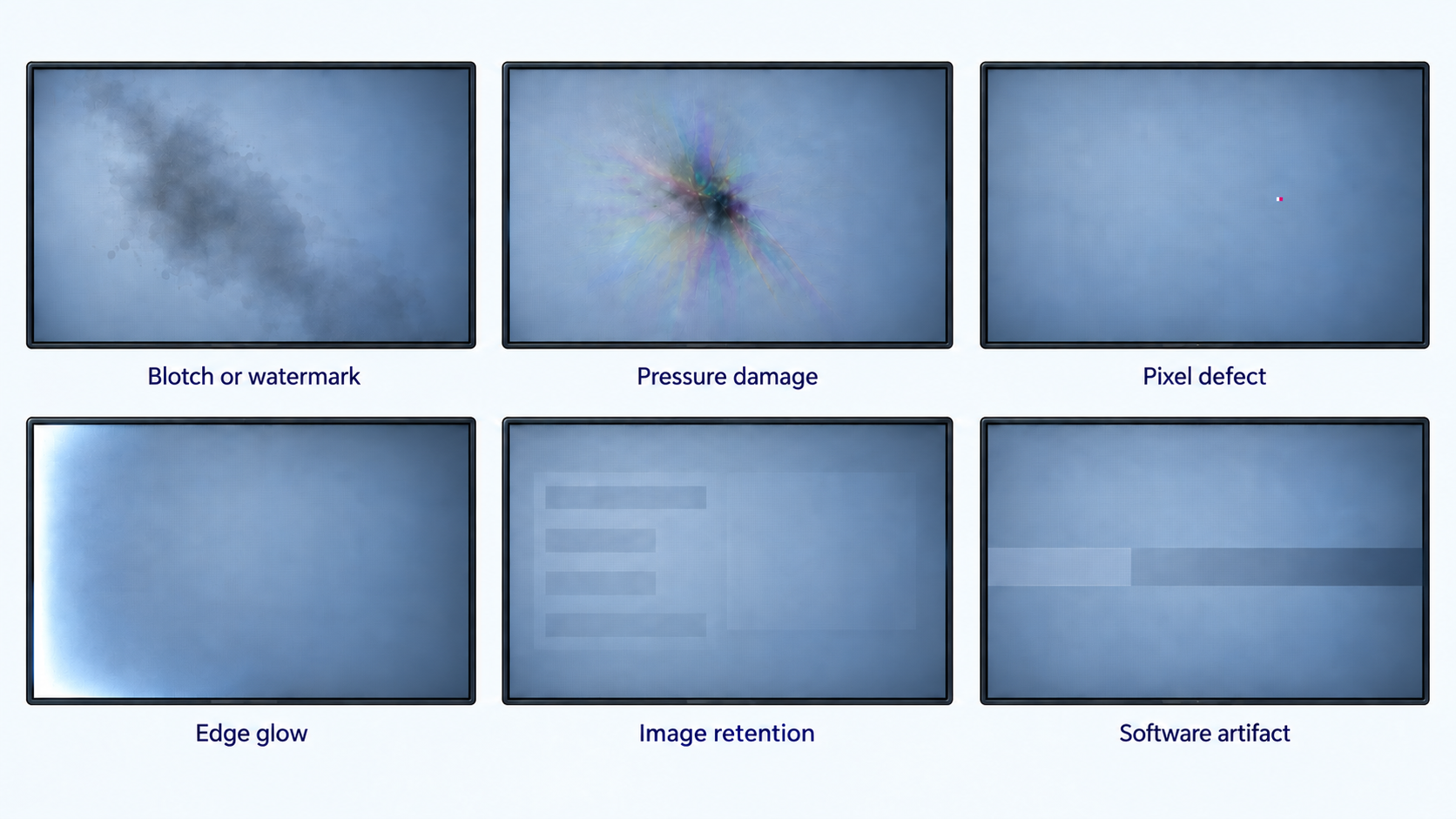
The way the mark behaves is often more useful than the label you give it. Use this short comparison to choose the next path; it can narrow the possibilities, but it cannot identify the internal cause. An ink-like black patch or spreading line does not automatically mean water entered the screen. Pressure, impact, panel failure, or damage to the LCD panel itself can look similar; LCD describes the display technology, not the cause.
If the change appeared with…
- Consider…
- Pressure or panel damage. Compare the screen pressure damage guide.
If the change appeared with…
- Consider…
- Heat-related damage. Compare the screen heat damage guide.
If the change appeared with…
- Consider…
- A dead or stuck pixel. Use the Pixel Test.
If the change appeared with…
- Consider…
- Backlight bleed or IPS glow. Use the Backlight Bleed Test when there is no active moisture risk.
If the change appeared with…
- Consider…
- Image retention or burn-in. Use the Burn-In Test when the device is dry and stable.
If the change appeared with…
- Consider…
- Software, GPU, driver, or output-path behavior becomes more plausible.
Swipe table to view all columns.Scroll table to view all columns.
| If the change appeared with… | Consider… |
|---|---|
| A squeeze, drop, bend, packed bag, or lid pressure | Pressure or panel damage. Compare the screen pressure damage guide. |
| Direct sun, a hot car, blocked airflow, or overheating | Heat-related damage. Compare the screen heat damage guide. |
| One tiny fixed black, white, red, green, or blue point | A dead or stuck pixel. Use the Pixel Test. |
| A stable glow at an edge or corner on a dark field | Backlight bleed or IPS glow. Use the Backlight Bleed Test when there is no active moisture risk. |
| A faint app, logo, taskbar, or keyboard shape after the content changes | Image retention or burn-in. Use the Burn-In Test when the device is dry and stable. |
| The same artifact in a screenshot or on another display | Software, GPU, driver, or output-path behavior becomes more plausible. |
If the device is still wet, stop testing
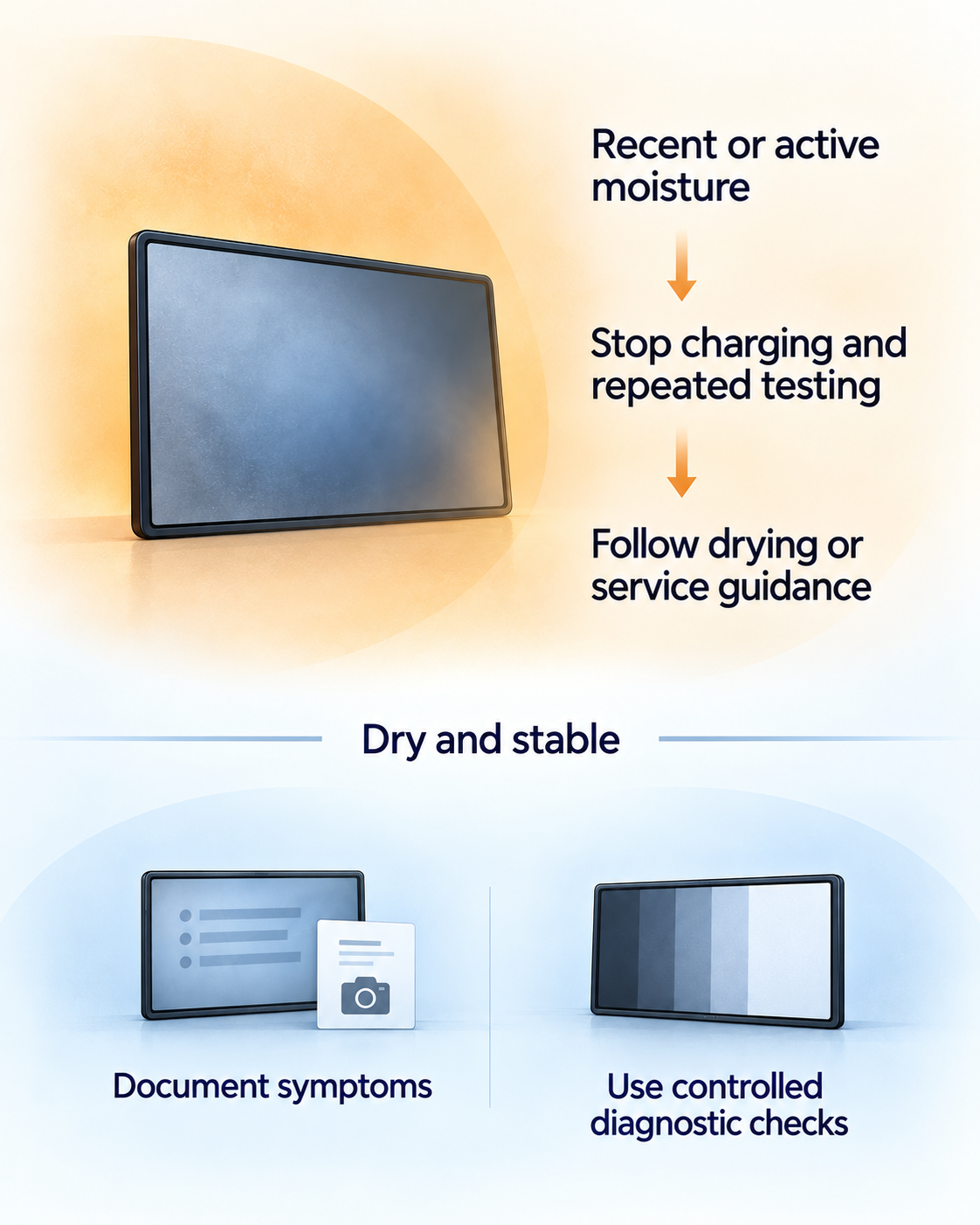
If the device may still be wet, disconnect power and stop testing it. Do not reconnect a charger just to see whether the screen still works. Follow the manufacturer’s instructions for that device before handling its ports or reconnecting power; the right steps vary by model.
Do not try to dry it with heat, compressed air, rice, cotton swabs, or paper. Do not push anything into its ports. If the device becomes hot, swells, smells burned, sparks, shuts down unexpectedly, or worsens quickly while powered, stop using it and seek service.
- Apple MacBook liquid-alert guidance applies to MacBook-specific alerts and handling.
- Google Pixel guidance and Samsung moisture guidance apply to those device families.
If the device is dry and still working
A working screen gives you access; it does not prove that the device is safe or that the damage has stopped. If the device is dry and stable enough to use, keep the next steps limited and purposeful:
- Back up important data while the display is readable.
- Take one clear photo of the pattern and note what happened before it appeared.
- Use an external display only when the device is dry and stable, and only to preserve access or compare output.
- Choose a device or symptom guide when the next decision depends on the hardware or the dominant symptom.
- Get a device-specific inspection or quote if the symptom is worsening, the device is important, or other components may be involved.
When a screenshot helps
A screenshot records the image produced by the system. If the artifact appears in the screenshot and on another display, software, GPU, driver, or output-path causes become more plausible. If the screenshot is clean while the built-in panel looks wrong, a display-only path becomes more plausible. Neither result proves water damage, identifies the failed component, or proves that the device is safe.
If this happened on a laptop, continue with the laptop screen water-damage guide for built-in versus external-display behavior and laptop-specific next steps. If it happened on a MacBook, use the MacBook screen water-damage guide for Apple-specific liquid handling, ports, coverage, and service context.
If the device is dry and the main symptom is random input, use the ghost-touch guide. If the main symptom is a dark or cloudy area, use the dark-spots guide.
Can a water-damaged screen be repaired?
Sometimes a display assembly, connector, or another component can be repaired or replaced. Liquid exposure can also affect parts beyond the screen, so a visual check cannot determine whether repair is worthwhile. Get a device-specific inspection or quote before deciding between repair and replacement. If the screen is still readable enough to access important files, consider Backup & Transfer before handing the device over for inspection.
Related guides
Use this when moisture exposure is now showing up as random taps or unreliable touch.
Use this when the main visible problem is a dark blotch, stain, or uneven area.
Use this when a stable laptop still runs but its built-in panel is unreliable.
Use this when you need a clear photo and short event note before service or repair.
Use this when a device-specific quote is high enough to compare repair with replacement.
Sources
- How ScreenDetect Works
ScreenDetect · Evidence standards and capability boundaries used across ScreenDetect workflows.
- If you see a liquid-detection alert on your iPhone
Apple Support · Wet connector, charging restrictions, and drying cautions.
- If you see a liquid-detection alert on your MacBook
Apple Support · MacBook-specific liquid alerts and service guidance.
- About liquid damage to Mac computers and accessories
Apple Support · Mac liquid-damage and coverage context.
- Help prevent water damage to your Pixel phone
Google Pixel Help · Pixel-specific wet-device handling and charging guidance.
- Moisture in a Samsung phone or tablet charging port
Samsung Support · Moisture warnings, charging cautions, and service routing.