
Check this first
If the screen changed during or after direct sun, a hot car, blocked vents, charging heat, or a heavy workload, stop the hot condition before you test the screen again. Move the device away from heat, disconnect charging if it is safe, let it cool normally at room temperature, and do not use a fridge, freezer, ice pack, heat gun, or repeated stress test.
Once the device is stable, check whether the mark stays in the same physical area, whether it appears in a screenshot or external display where available, and whether it returns only when the device heats up again. Temporary dimming or charging pause can be built-in temperature protection; a persistent blotch, tint, flicker, or unreliable touch after cooling needs documentation and repair or support planning.
What to know before you keep testing
- A hot device is not the same as a heat-damaged screen; timing plus visible pattern matters.
- Manufacturer heat warnings usually describe temporary protection, not proof that a panel is permanently damaged.
- Cooling improvement is useful information, but returning symptoms are a warning.
- A spreading mark, unreliable touch, repeated shutdown, battery swelling, or unusual smell should move you toward manufacturer support or repair instead of more home testing.
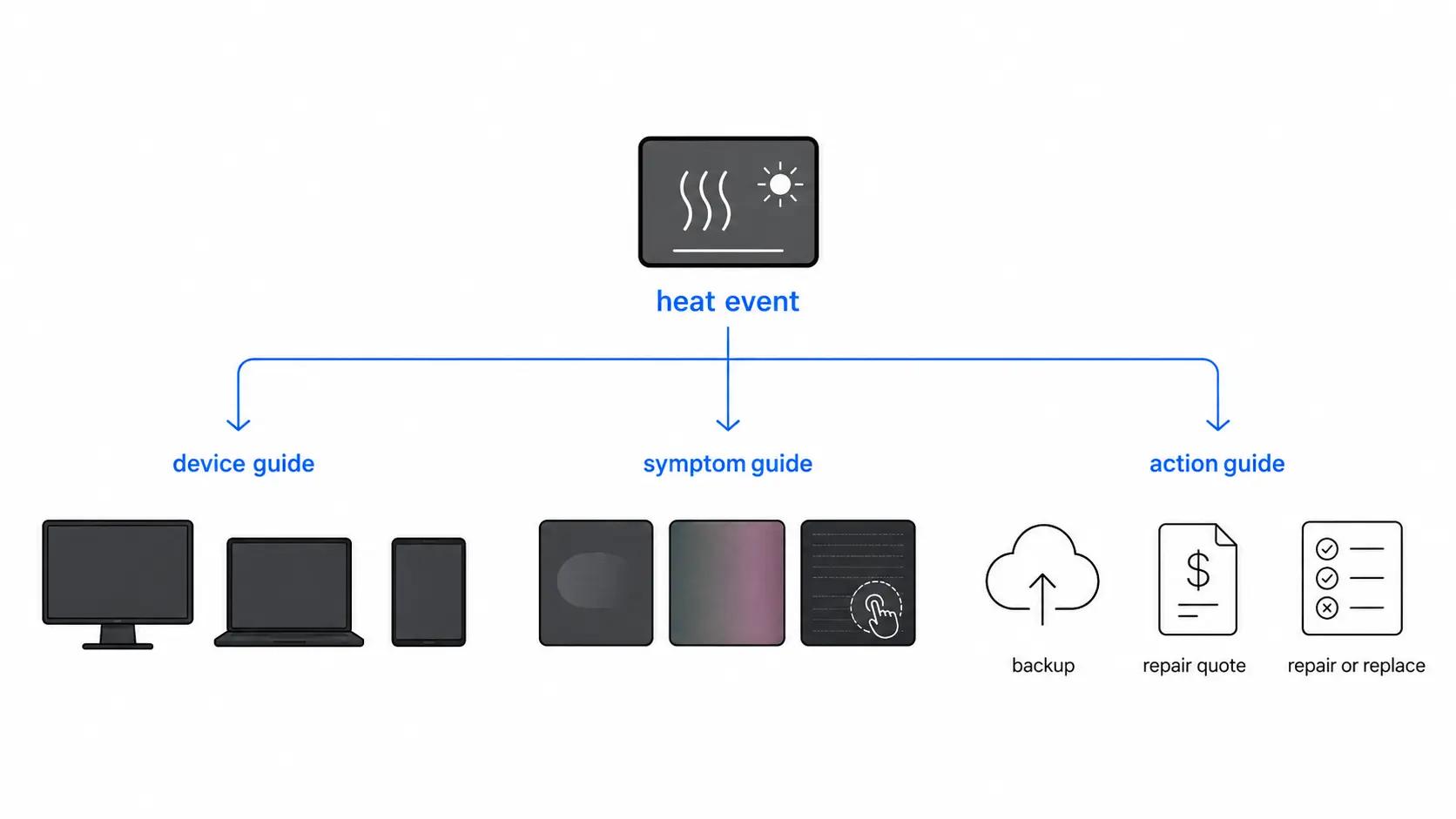
Choose by device, symptom, or access need
Pick the row that matches what is most specific. The broader heat check can stay short if the device family, visible pattern, or access problem already points somewhere more useful.
If this is your situation
- Go here
- MacBook screen heat damage
- Why
- Apple laptop context, direct sun or hot-car exposure, heavy workloads, and XDR brightness-limit behavior where that display type applies.
If this is your situation
- Go here
- Laptop screen heat damage
- Why
- Blocked vents, soft surfaces, heavy workloads, hot bags, external monitor access, and repair planning.
If this is your situation
- Go here
- Dark spots after damage
- Why
- Separates heat-linked discoloration from pressure bruising, moisture marks, and pixel defects.
If this is your situation
- Go here
- Ghost touch after damage
- Why
- Starts with control reliability instead of only the visible display pattern.
If this is your situation
- Why
- Preserves access while you back up files and plan repair.
If this is your situation
- Go here
- Document damage for warranty
- Why
- Keeps the record practical: one clear photo, device state, and what happened before the symptom appeared.
Swipe table to view all columns.Scroll table to view all columns.
| If this is your situation | Go here | Why |
|---|---|---|
| The device is a MacBook, MacBook Air, or MacBook Pro | MacBook screen heat damage | Apple laptop context, direct sun or hot-car exposure, heavy workloads, and XDR brightness-limit behavior where that display type applies. |
| The device is a Windows laptop, Chromebook, gaming laptop, or work laptop | Laptop screen heat damage | Blocked vents, soft surfaces, heavy workloads, hot bags, external monitor access, and repair planning. |
| The clearest symptom is a dark patch, dim area, blotchy zone, or discoloration | Dark spots after damage | Separates heat-linked discoloration from pressure bruising, moisture marks, and pixel defects. |
| Touch is drifting, delayed, or triggering random taps after heat | Ghost touch after damage | Starts with control reliability instead of only the visible display pattern. |
| The laptop still runs but the built-in screen is unreliable | Use a laptop with an external monitor | Preserves access while you back up files and plan repair. |
| The pattern may matter for repair, warranty, school IT, or insurance | Document damage for warranty | Keeps the record practical: one clear photo, device state, and what happened before the symptom appeared. |
Heat-related screen clues that matter
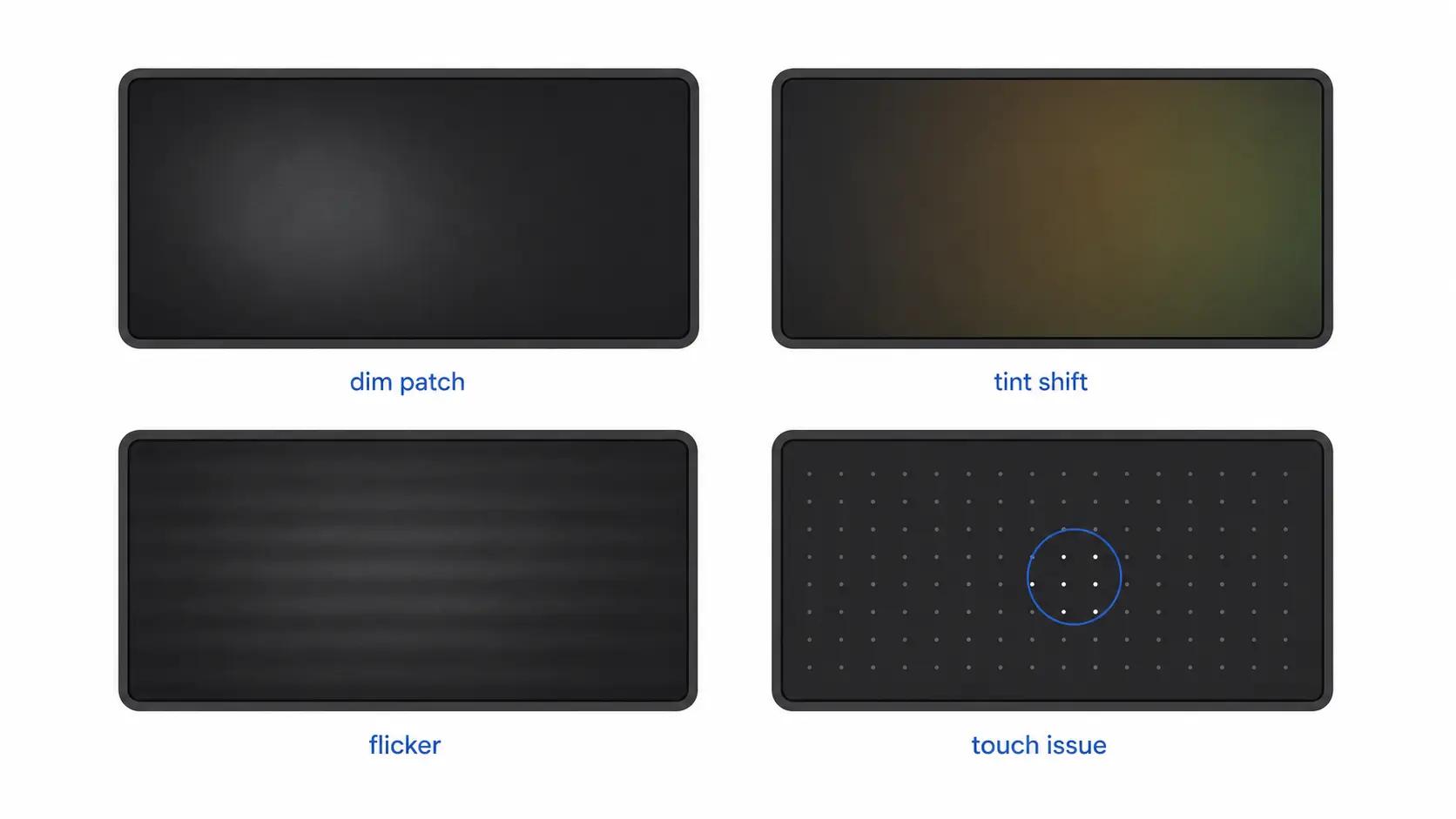
A screen problem is more credible as heat-linked when the symptom and the thermal event line up. Treat these as clues, not proof of the exact internal cause.
- Dim, blotchy, or discolored area after direct sun, a hot car, or another high-temperature exposure.
- Brightness dimming or a black display during heat that clears after cooling; manufacturers describe this kind of behavior as protection on some devices, not a repair diagnosis.
- Flicker, tint shift, or brightness instability that returns when the same workload or environment heats the device.
- Touch drift, delayed touch, or random taps on a touchscreen after overheating.
- A mark that stays in the same physical place across apps or backgrounds after the device returns to normal temperature.
Heat damage or a look-alike?
Do this comparison before treating every warm-device symptom as permanent heat damage. The wrong comparison can send you toward the wrong test or repair conversation.
What you see
- What it may be instead
- Burn-in or image retention
- What to check next
- Run the Burn-In Test. Heat can stress display behavior, but retained UI shapes should be compared against image retention first.
What you see
- What it may be instead
- Pressure damage
- What to check next
- Compare screen pressure damage.
What you see
- What it may be instead
- Water damage
- What to check next
- Compare screen water damage.
What you see
- What it may be instead
- Dead, stuck, or hot pixel
- What to check next
- Run the Pixel Test. A single dot is not the same as a heat-linked blotch or dim zone.
What you see
- What it may be instead
- Backlight bleed or IPS glow
- What to check next
- Run the Backlight Bleed Test if the issue is edge glow rather than a heat-timed patch.
What you see
- What it may be instead
- Software, GPU, driver, or system output issue
- What to check next
- Do one restart and compare on another display only if the device is safe to keep running.
Swipe table to view all columns.Scroll table to view all columns.
| What you see | What it may be instead | What to check next |
|---|---|---|
| A faint app, logo, menu bar, taskbar, or UI shape remains after switching content | Burn-in or image retention | Run the Burn-In Test. Heat can stress display behavior, but retained UI shapes should be compared against image retention first. |
| A black blotch, white pressure mark, or line cluster after a squeeze, bend, packed bag, or lid/object event | Pressure damage | Compare screen pressure damage. |
| Flicker, tinting, black screen, or blotches after liquid, rain, condensation, or a wet bag | Water damage | Compare screen water damage. |
| One tiny black, white, red, green, or blue dot | Dead, stuck, or hot pixel | Run the Pixel Test. A single dot is not the same as a heat-linked blotch or dim zone. |
| Glow strongest near an edge or corner on a dark screen | Backlight bleed or IPS glow | Run the Backlight Bleed Test if the issue is edge glow rather than a heat-timed patch. |
| The issue appears in screenshots or on an external monitor too | Software, GPU, driver, or system output issue | Do one restart and compare on another display only if the device is safe to keep running. |
What to do before testing again
The safer next move depends on whether the symptom is temporary, returning, spreading, or affecting access.
Situation
- Do now
- Move it away from heat, stop heavy tasks, disconnect charging if safe, and let it cool normally
- Why it matters
- Apple, Google, Samsung, and Microsoft all describe temporary protection at high temperature; forcing more tests can add stress without proving damage.
Situation
- Do now
- Take a clear photo or short video and note the heat event and time
- Why it matters
- Persistent symptoms matter more than one more stress test.
Situation
- Do now
- Treat it as a repeat warning and stop recreating the hot condition
- Why it matters
- Temporary improvement does not prove the display recovered.
Situation
- Do now
- Back up now and use an external monitor if available
- Why it matters
- Access may be the most valuable working state.
Situation
- Do now
- Stop screen-only testing and contact the manufacturer, retailer, repair provider, or IT owner
- Why it matters
- Those symptoms can involve more than the display panel.
Situation
- Do now
- Compare repair cost, data needs, warranty or coverage terms, and replacement value
- Why it matters
- The decision may be reliability and cost rather than more diagnosis.
Swipe table to view all columns.Scroll table to view all columns.
| Situation | Do now | Why it matters |
|---|---|---|
| The device shows a temperature warning, dims, slows, pauses charging, or shuts down | Move it away from heat, stop heavy tasks, disconnect charging if safe, and let it cool normally | Apple, Google, Samsung, and Microsoft all describe temporary protection at high temperature; forcing more tests can add stress without proving damage. |
| The mark, flicker, tint, or touch issue is visible after cooling | Take a clear photo or short video and note the heat event and time | Persistent symptoms matter more than one more stress test. |
| The issue improves after cooling but returns under heat | Treat it as a repeat warning and stop recreating the hot condition | Temporary improvement does not prove the display recovered. |
| The laptop still runs but the built-in screen is unreliable | Back up now and use an external monitor if available | Access may be the most valuable working state. |
| Touch is unreliable, the screen mark is spreading, the device repeatedly overheats, the battery looks swollen, or the device smells unusual | Stop screen-only testing and contact the manufacturer, retailer, repair provider, or IT owner | Those symptoms can involve more than the display panel. |
| Repair cost may be high or the device is older | Compare repair cost, data needs, warranty or coverage terms, and replacement value | The decision may be reliability and cost rather than more diagnosis. |
Common questions
What does screen heat damage look like?
It can look like a dim, blotchy, or discolored area, tinting, flicker, touch instability, or a mark fixed in the same physical place after heat exposure. Those signs are clues, not proof; compare the timing and the look-alikes before naming the cause.
Can screen heat damage go away after cooling?
Temporary heat behavior can clear after cooling, especially dimming, charging pauses, or temperature warnings. If a mark remains after cooling or returns whenever the device heats up again, do not assume the display recovered.
Should I use the MacBook or laptop heat damage guide?
Use MacBook screen heat damage for Apple laptops and Apple-specific display behavior. Use laptop screen heat damage for Windows laptops, Chromebooks, gaming laptops, blocked vents, soft surfaces, heavy workloads, and external monitor planning.
Is heat damage the same as burn-in?
No. Burn-in or image retention usually follows repeated static UI and leaves a recognizable app, logo, menu, or taskbar shape. Heat damage is more tied to a heat event, a dim patch, discoloration, flicker, or a symptom that returns when the device gets hot.
How do I tell heat damage from pressure damage?
Heat damage is more tied to direct sun, hot cars, blocked vents, charging heat, or overheating. Pressure damage is more tied to a squeeze, bend, packed bag, lid/object event, black bruise, white mark, or fixed line cluster.
How do I tell heat damage from water damage?
Water damage is more tied to liquid, rain, condensation, wet bags, staged worsening, tinting, flicker, or touch instability after moisture exposure. Heat damage is more tied to hot conditions and symptoms that repeat under heat.
What should I do first if heat seems to trigger the screen problem?
Stop the hot condition, move the device away from heat, disconnect charging if safe, let it cool normally, document the symptom while visible, and avoid repeating the same hot workload just to reproduce the issue.
Can I cool the device with ice, a fridge, or a freezer?
No. Let the device cool normally in a safer environment. Sudden cold, moisture, and condensation can create a new problem and do not prove whether the screen damage is physical.
Should I repair the screen or replace the device?
Get a repair quote first, then compare it with the age, value, data needs, and reliability of the device. If the quote is high or the device has other issues, replacement may be worth comparing.
Related guides
For Apple laptop heat context: direct sun, hot-car exposure, heavy workloads, and MacBook-specific display behavior.
For Windows laptops, Chromebooks, gaming laptops, blocked vents, soft surfaces, hot bags, and external monitor planning.
For dim patches, blotchy areas, or discolored zones where the visible pattern matters more than the device.
For heat-linked touch instability, random taps, delayed touch, or control problems.
For laptops that still run but no longer have a dependable built-in display.
For capturing the pattern, timing, and device state before repair, warranty, school IT, or insurance conversations.
For retained UI shapes, logos, menu bars, or image retention that look more like burn-in than heat damage.
For squeeze, bend, packed bag, or object pressure timing.
For liquid, rain, condensation, or wet-bag timing.
For comparing repair cost, device age, reliability, and replacement value.
Sources
- If the brightness is limited on your MacBook Pro with Liquid Retina XDR display or Apple Pro Display XDR
Apple Support · Apple documents brightness limiting under high ambient temperature and prolonged bright-content use on specific XDR display products, plus cool-down steps and the service threshold.
- If your iPhone or iPad gets too hot or too cold
Apple Support · Apple explains operating and storage temperature ranges, temporary screen dimming or black display behavior, charging limits, temperature warnings, and hot-car or direct-sun risk.
- Important safety information for iPad
Apple Support · Apple advises well-ventilated charging and use, warns against prolonged heat exposure, and notes that damaged devices can overheat.
- What to try if your Surface feels too warm
Microsoft Support · Microsoft describes normal warmth, operating temperature limits, shutdown behavior, thermometer warning behavior, cool-down guidance, and support escalation if the warning persists.
- Help keep your Pixel phone from feeling too warm or hot
Google Pixel Help · Google describes Pixel heat protections, reduced performance or charging, direct-sun and hot-vehicle risk, and the advice to disconnect power and stop use until the phone cools down.
- Keep your Galaxy device at its normal operating temperature
Samsung Support · Samsung describes Galaxy temperature factors, built-in safeguards, dimming, charging pauses, overheating messages, and support contact when the device remains too warm.
- Troubleshoot Dell Laptop Overheating Issues
Dell Support · Dell describes laptop overheating contributors such as direct sunlight, hot environments, blocked airflow, system load, and the importance of a hard, flat surface for airflow.