
What MacBook screen water damage can look like
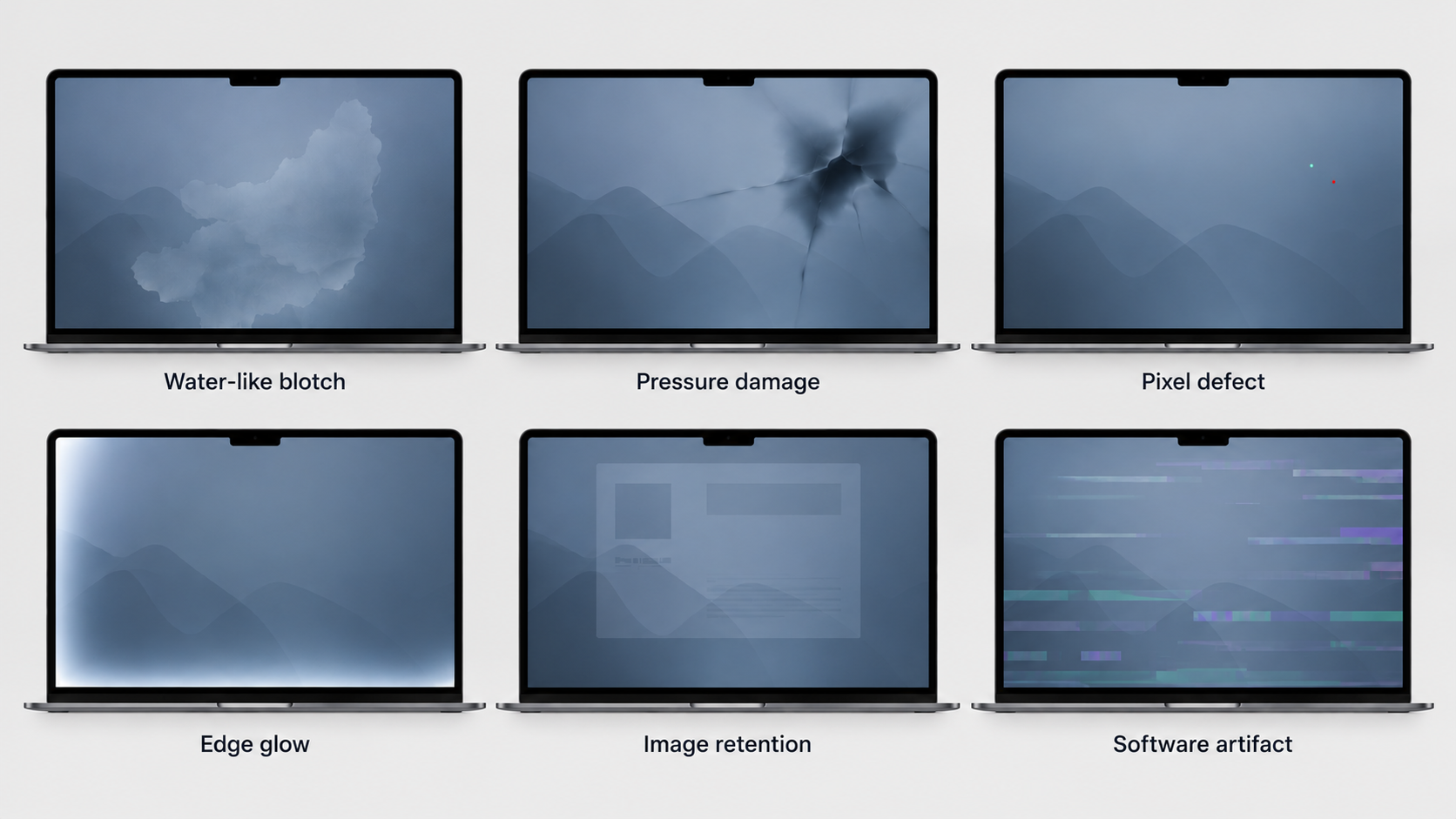
MacBook screen water damage can appear as a cloudy patch, water-like mark, shimmer, discoloration, flicker, uneven backlight, or a dark area under the display. The MacBook may still turn on. A visible pattern is a clue, not proof of where the liquid went or which component failed.
The strongest interpretation comes from combining the pattern with the event: a spill near the keyboard, a wet bag, rain, condensation, or a liquid alert makes liquid exposure more plausible. If there was no moisture event, compare the same symptom with pressure, hinge, heat, software, and panel damage before calling it water damage.
Common patterns include cloudy patches, watermarks or tide lines, shimmer, discoloration, flicker, uneven backlighting, and a black screen.
The event matters as much as the pattern
MacBook liquid exposure does not have to begin on the visible screen. A spill can reach the display path through the keyboard, hinge area, speaker openings, vents, or another gap. A wet-looking bag can dry on the outside while the MacBook still has moisture inside.
If this happened before the screen changed…
- Treat this as…
- A stronger liquid-exposure clue, especially when the screen changed soon afterward.
If this happened before the screen changed…
- Treat this as…
- A possible moisture path even if the outside looked dry later.
If this happened before the screen changed…
- Treat this as…
- A delayed symptom that still needs to be compared with the event history.
If this happened before the screen changed…
- Treat this as…
- A reason to stop casual charging and seek device-specific guidance, not proof of a particular failed part.
If this happened before the screen changed…
- Treat this as…
- Pressure or panel damage becomes more plausible than liquid damage.
If this happened before the screen changed…
- Treat this as…
- Software, graphics, cable, or output-path behavior becomes more plausible.
Swipe table to view all columns.Scroll table to view all columns.
| If this happened before the screen changed… | Treat this as… |
|---|---|
| Liquid reached the keyboard, display edge, hinge, or ports | A stronger liquid-exposure clue, especially when the screen changed soon afterward. |
| The MacBook travelled in a wet bag, rain, or high humidity | A possible moisture path even if the outside looked dry later. |
| The display changed after sitting overnight | A delayed symptom that still needs to be compared with the event history. |
| The screen changed after charging or extended use following exposure | A reason to stop casual charging and seek device-specific guidance, not proof of a particular failed part. |
| A closed-lid object, backpack squeeze, impact, or flex happened without moisture | Pressure or panel damage becomes more plausible than liquid damage. |
| There was no physical event and the artifact changes with apps or windows | Software, graphics, cable, or output-path behavior becomes more plausible. |
Clean outer glass does not establish that the display assembly or the rest of the MacBook stayed dry. It also does not establish that a visible mark came from liquid; the symptom still needs to be compared with the event and its behavior.
Can MacBook screen water damage appear later?
Yes. A MacBook can look normal immediately after exposure and develop a cloudy area, water-like mark, shimmer, discoloration, flicker, or uneven backlight later. Delayed appearance makes the exposure history important, but it does not identify the damaged component.
“It was fine yesterday” is not a reliable all-clear. Document the current state and protect access while the display is still usable. A delayed symptom does not necessarily mean corrosion, and it may or may not continue to spread.
Current state
- Prioritize
- Disconnect power and accessories, stop casual testing, and follow Apple or qualified service guidance.
Current state
- Prioritize
- Back up important data, document the visible state briefly, and avoid unnecessary restarts or charging cycles.
Current state
- Prioritize
- Preserve access before more diagnosis. An external display is only a later option when the MacBook is dry and stable.
Current state
- Prioritize
- Move from diagnosis to backup access, service, repair, coverage, or replacement decisions.
Swipe table to view all columns.Scroll table to view all columns.
| Current state | Prioritize |
|---|---|
| Recent exposure and the MacBook may still be wet | Disconnect power and accessories, stop casual testing, and follow Apple or qualified service guidance. |
| The MacBook is dry and the display is still usable | Back up important data, document the visible state briefly, and avoid unnecessary restarts or charging cycles. |
| The mark, flicker, or dim area is worsening | Preserve access before more diagnosis. An external display is only a later option when the MacBook is dry and stable. |
| The built-in display is no longer dependable | Move from diagnosis to backup access, service, repair, coverage, or replacement decisions. |
Water damage versus pressure, hinge, heat, or software problems
Use the event plus the behavior of the image. The same dark area or flicker can have more than one cause.
If the change appeared with…
- Compare first with…
- Liquid exposure, while remembering that the visible display symptom does not prove the display is the only affected part.
If the change appeared with…
- Compare first with…
- Pressure or panel damage. This is especially important when there is no moisture history.
If the change appeared with…
- Compare first with…
- Hinge, cable, or display-connection behavior. After a spill, the same behavior may still involve liquid near the hinge area.
If the change appeared with…
- Compare first with…
- Heat-related display or system behavior. Heat after a spill may be a contributor rather than the original cause.
If the change appeared with…
- Compare first with…
- Software, graphics, driver, or output-path behavior becomes more plausible. Neither comparison proves the cause.
Swipe table to view all columns.Scroll table to view all columns.
| If the change appeared with… | Compare first with… |
|---|---|
| A spill, wet bag, rain, condensation, or a liquid alert | Liquid exposure, while remembering that the visible display symptom does not prove the display is the only affected part. |
| A closed-lid object, backpack squeeze, impact, or flex | Pressure or panel damage. This is especially important when there is no moisture history. |
| A repeatable change at one lid angle without moisture history | Hinge, cable, or display-connection behavior. After a spill, the same behavior may still involve liquid near the hinge area. |
| Sustained heat or blocked airflow without moisture or pressure | Heat-related display or system behavior. Heat after a spill may be a contributor rather than the original cause. |
| The same artifact in screenshots or on another display | Software, graphics, driver, or output-path behavior becomes more plausible. Neither comparison proves the cause. |
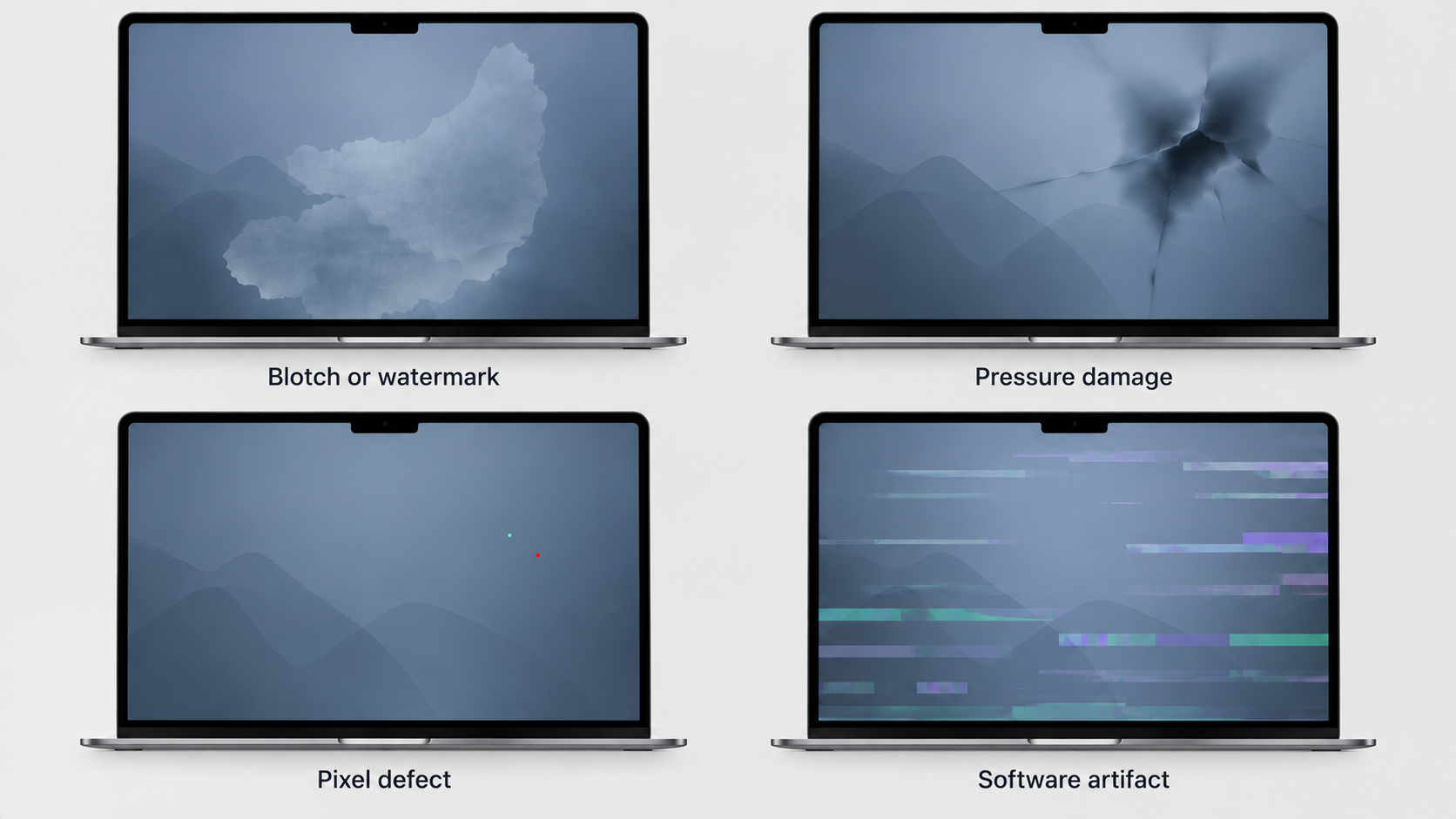
This comparison shows how a liquid-like blotch can differ from pressure damage or an isolated pixel defect.
If the MacBook may still be wet
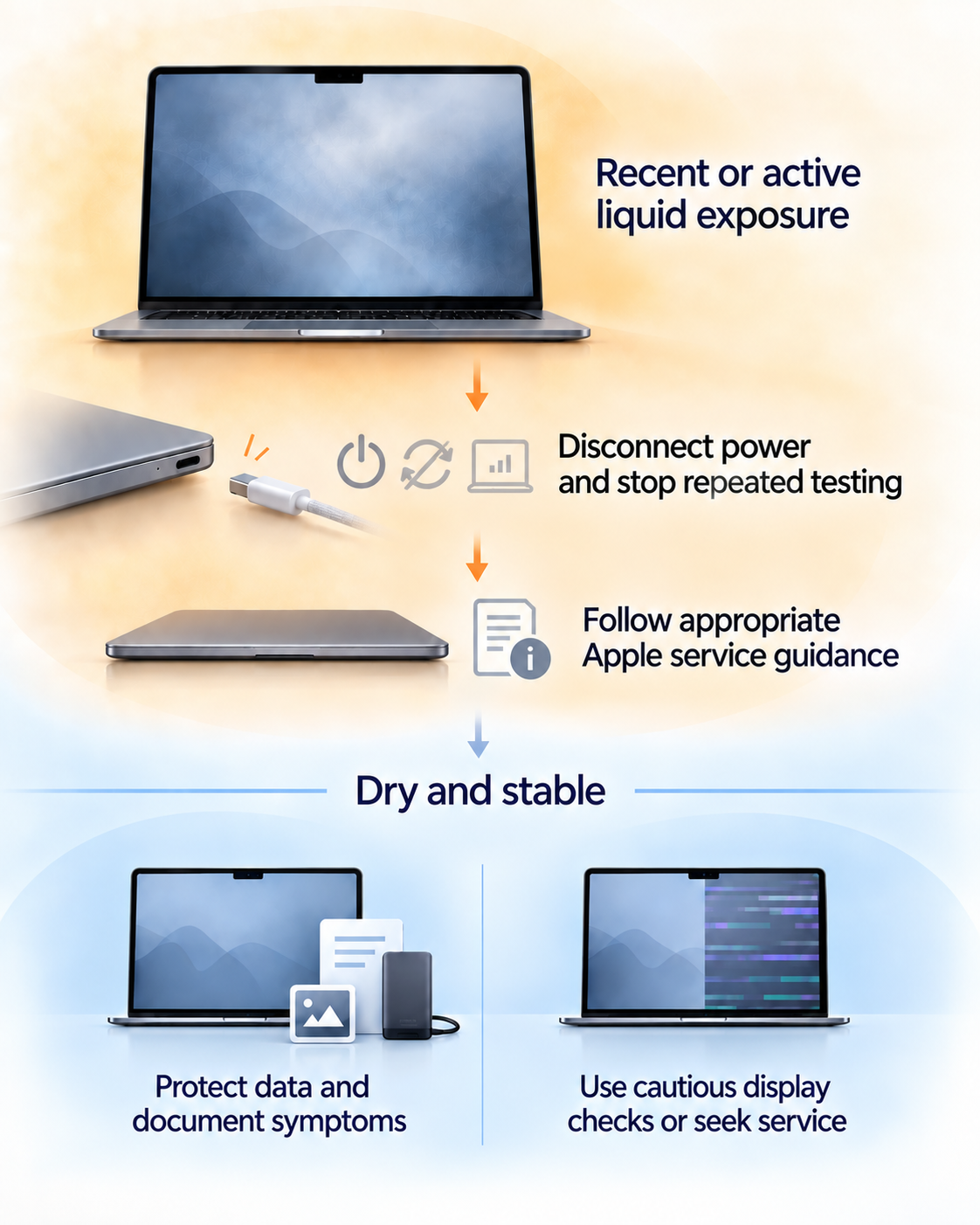
Do not keep running browser tests while the MacBook may still contain moisture. What you should do depends on whether it was recently exposed, is showing a liquid alert, or is behaving unusually.
Stop charging and repeated testing
- Disconnect power and accessories. Do not reconnect a USB-C cable or accessory until the connector, cable ends, and accessory are dry.
- Do not use external heat, compressed air, rice, or objects inserted into ports.
- If the MacBook is hot, swollen, smells burnt, smokes, sparks, or is rapidly worsening, stop handling it and seek appropriate service guidance.
Apple’s current liquid-detection guidance for compatible MacBook models explains that a wet USB-C port can be damaged by charging and gives model-specific drying and service boundaries. Do not generalize its alert behavior to every MacBook model.
A liquid alert identifies moisture at the connector or cable path. It does not prove that the display is damaged, and the absence of an alert does not prove that the MacBook is dry internally.
If the MacBook was recently exposed to liquid, disconnect power and stop testing. Once it is dry and stable, protect your data, document the symptoms, and decide whether you need service or cautious external access.
If the MacBook is dry and still working
“Still working” means you may have a short opportunity to protect your data and document the screen. It does not mean the MacBook is safe to keep charging or that the display problem is limited to the panel.
- Back up the data you cannot afford to lose while access is reliable.
- Take a brief photo or video of the visible screen state if you need evidence for service, coverage, or a repair conversation.
- Avoid repeated restarts, charging cycles, and tests that add heat or power use without answering a specific question.
- If the display becomes unreliable but the MacBook is dry and stable, use an external monitor only as an access aid—not as proof that the cause is water damage.
For the external-display workflow, use the laptop monitor-access guide only after the MacBook is dry and stable enough to operate safely.
MacBook-specific signs that the problem may be broader than the screen
A display symptom can be the most visible part of a wider liquid-exposure problem. If you see these combinations, stop troubleshooting the screen with browser tests:
- The screen problem appears with keyboard, trackpad, charging, USB-C, or accessory problems.
- The MacBook shuts down unexpectedly, becomes unusually hot, or worsens quickly.
- A liquid-detection alert returns after the connector and cable have had time to dry.
- The built-in display is failing while the MacBook’s behavior is otherwise changing as well.
These signs increase concern about broader liquid exposure. They do not identify whether the display, cable, logic board, battery, or another component needs service.
Apple liquid indicators, service, and coverage
Current Mac laptops may include Liquid Contact Indicators that help establish whether the product has been exposed to liquid. An indicator can support an exposure finding, but it does not identify the exact damaged component, prove that the display caused the failure, or predict the repair cost.
Apple explains its liquid-damage warranty position in About liquid damage to Mac computers and accessories. Liquid damage is separate from ordinary warranty coverage, while an AppleCare plan may provide accidental-damage protection subject to its terms and service fee.
For an estimate or service path, use Apple’s Mac laptop repair guidance. Apple notes that the final service decision and fee require inspection and can vary by device, location, and parts availability.
ScreenDetect can help organize the visible symptom and the timeline. It cannot inspect an LCI, internal connector, battery, logic board, display layers, or warranty eligibility from the browser.
When repair or replacement becomes the next decision
If the display is spreading, flickering, showing a water-like mark, or becoming unreliable after liquid exposure, the useful question is no longer only “is this water damage?” It is whether the MacBook still provides reliable access and what a qualified inspection says about the affected parts.
Document what you see while the details are fresh, especially if you may need service or coverage information. For a concise record, use the damage-documentation guide. If a repair quote is high relative to the MacBook’s age and value, compare the options with the repair-versus-replace guide.
If the clearest symptom is a fixed dark or cloudy area, continue with the dark-spots guide for symptom-specific comparison.
Common questions
Can a MacBook screen look normal immediately after a spill?
Yes. The display can look normal immediately and change later. A normal-looking screen is not proof that the MacBook is dry internally or that continued charging is safe.
Does a liquid-detection alert prove the MacBook screen is damaged?
No. It identifies moisture at a compatible USB-C port or cable path. It does not identify which internal component is damaged, and no alert does not prove the MacBook is dry.
Can water under a MacBook screen dry out?
Visible moisture may change or become less obvious, but that does not establish that the display or the rest of the MacBook is undamaged. Avoid heat and seek appropriate service guidance if liquid reached the device.
Can a MacBook still work after liquid reaches the display?
Yes. A working MacBook can still have a developing display or broader liquid-related problem. Use the access window to back up and document rather than treating normal startup as an all-clear.
Related guides
Start with the general screen-water-damage guide if you want the broader symptom comparison before focusing on MacBook-specific details.
Use this when a fixed dark or cloudy area is the clearest remaining symptom.
Use this only when the MacBook is dry and stable enough to operate and the built-in display is unreliable.
Create a concise record of the event and the visible display state before service.
Compare the practical options after a qualified inspection or repair quote.
Sources
- If you see a liquid-detection alert on your MacBook Air or MacBook Pro
Apple Support · Model-specific USB-C liquid-alert behavior, charging cautions, drying boundaries, and what not to insert into a port.
- About liquid damage to Mac computers and accessories not covered by warranty
Apple Support · Liquid Contact Indicators, warranty limitations, AppleCare context, and service routing.
- Apple Service and Repair for Mac Laptops
Apple Support · Inspection, service options, estimates, coverage boundaries, and repair routing.
- How to clean your Apple products
Apple Support · Mac laptop cleaning boundaries, moisture precautions, and guidance against spraying liquid into openings.