
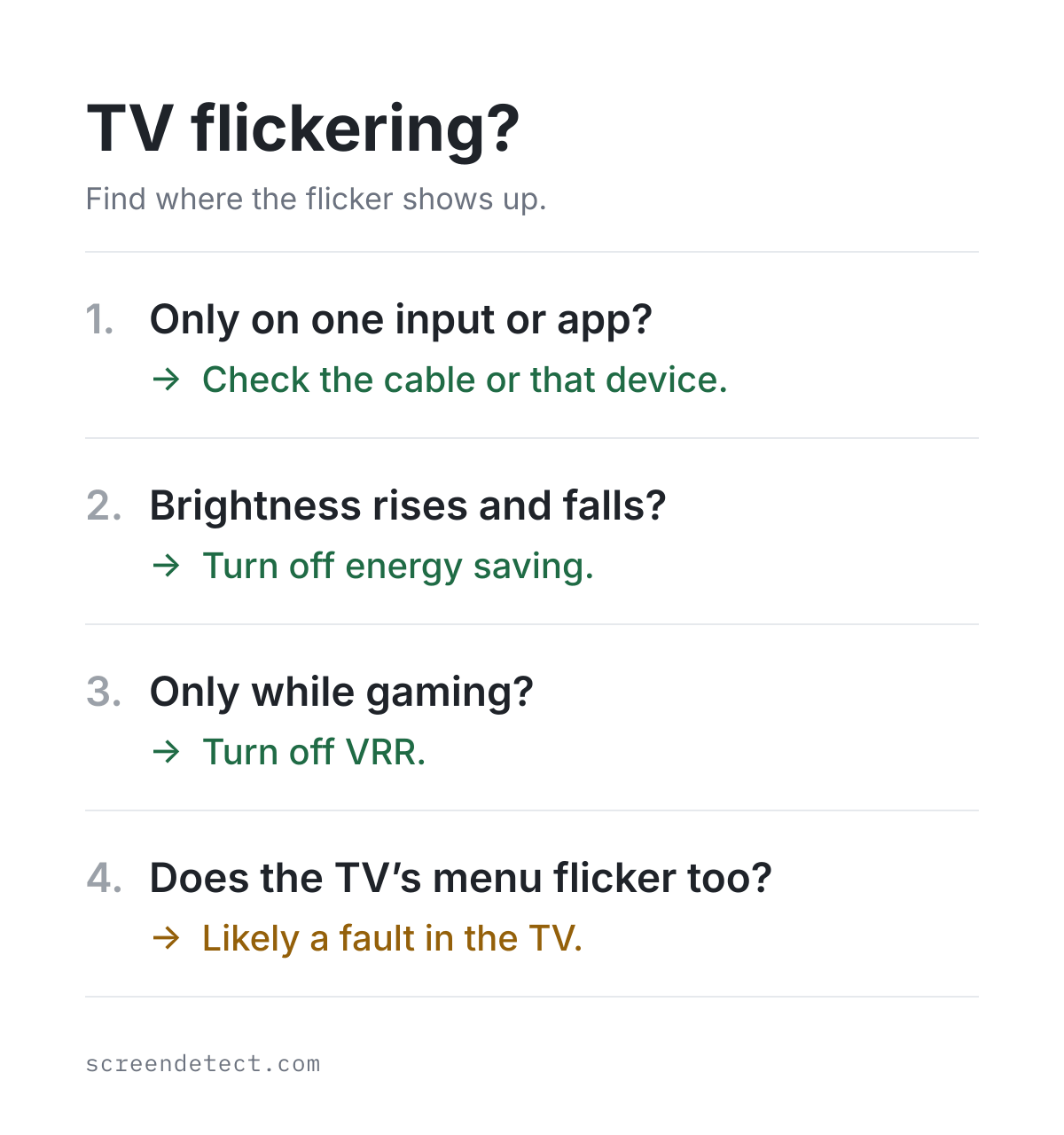
If your TV screen flickers, press Home or Menu on the remote and watch the TV's own menu. If the menu looks steady while the show behind it flickers, the TV is probably fine. The problem is a setting, the cable, or the device you're watching.
If the menu flickers too, the fault is more likely inside the TV. Many flickers turn out to be a setting that changes the brightness on its own, and those take a couple of minutes to turn off.
Whatever you find, don't open the TV, and check when you bought it. A flicker that turns out to be a hardware fault may still be covered by the store's return window or the warranty.
Does the TV's own menu flicker too?
The TV draws its menu and settings itself, without any outside device. That makes it a useful test. LG's support guide says that if the on-screen menu also flickers, you should contact LG, and Samsung says that flicker in its built-in Picture Test means the TV needs service.
What you see
- What it means
- The signal, cable or that device. The TV is probably fine.
What you see
- What it means
- Likely a fault in the TV. Contact the maker.
What you see
- What it means
- An auto-brightness setting, not usually a fault.
What you see
- What it means
- Gaming (VRR) flicker, common on OLED and some LED TVs.
What you see
- What it means
- The TV switching format or refresh rate.
What you see
- What it means
- A power or backlight problem. See the black screen guide.
Swipe table to view all columns.Scroll table to view all columns.
| What you see | What it means |
|---|---|
| Only one input or app flickers | The signal, cable or that device. The TV is probably fine. |
| The menu and picture test flicker too | Likely a fault in the TV. Contact the maker. |
| Brightness rises and falls with the scene or room | An auto-brightness setting, not usually a fault. |
| Flicker only in games | Gaming (VRR) flicker, common on OLED and some LED TVs. |
| A black flash when a show or app starts | The TV switching format or refresh rate. |
| It flickers, then goes black | A power or backlight problem. See the black screen guide. |
Run your TV's built-in picture test
Some TVs can show a test picture on their own. On Samsung TVs, go to All Settings, Support, Device Care, Self Diagnosis, Picture Test (older models skip Device Care). On LG TVs from 2021 on, go to All Settings, Support, Screen Self-Diagnosis; LG lists the older paths. If the test picture flickers, the TV needs service. If it looks steady, keep going with the settings and signal checks below.
Turn off the settings that make a TV flicker
Several picture features change brightness on purpose. When they react to the room or the scene, the picture can look like it's flickering even though nothing is broken.
Auto-brightness and energy saving
Energy-saving modes and light sensors dim and brighten the screen as the room or picture changes. Samsung's own test is a good one: turn these features off, and if the flicker stays, brightness wasn't the cause. Samsung's picture guide covers Eco Solution, Ambient Light Detection and Power Saving Mode.
Motion settings
Motion smoothing and backlight strobing features can also cause flicker. Roku's guide says to turn LED Motion Clarity off if you see flickering, and to avoid high Action Smoothing settings. Sony's help guide suggests turning Motionflow and CineMotion off.
Brightness that pumps in dark scenes
Many LED TVs dim parts of the backlight in dark scenes, and OLED TVs limit brightness on bright full-screen images. Both can make the picture seem to breathe as scenes change. That's normal behavior. You can usually turn local dimming down or off, but the brightness limiter on OLED TVs can't be switched off from the normal menus.
TV brand
- Settings to turn off
- Eco Solution: Ambient Light Detection, Power Saving Mode, Motion Lighting
TV brand
- Settings to turn off
- Energy Saving Step (under Energy Saving)
TV brand
- Settings to turn off
- Clear Action, Auto Brightness Control, then local dimming
TV brand
- Settings to turn off
- Adaptive Brightness (Picture, Eye Health Protection)
TV brand
- Settings to turn off
- LED Motion Clarity, and lower Action Smoothing
TV brand
- Settings to turn off
- Motionflow and CineMotion; Enhanced format (VRR) for games
TV brand
- Settings to turn off
- Reset each picture mode, then update the software
Swipe table to view all columns.Scroll table to view all columns.
| TV brand | Settings to turn off |
|---|---|
| Samsung | Eco Solution: Ambient Light Detection, Power Saving Mode, Motion Lighting |
| LG | Energy Saving Step (under Energy Saving) |
| Vizio | Clear Action, Auto Brightness Control, then local dimming |
| TCL Google TV | Adaptive Brightness (Picture, Eye Health Protection) |
| Roku TV | LED Motion Clarity, and lower Action Smoothing |
| Sony | Motionflow and CineMotion; Enhanced format (VRR) for games |
| Fire TV models | Reset each picture mode, then update the software |
TV flickers on one input or app: fix the signal
When only one device or app flickers, work through the chain between that device and the TV:
- Unplug the HDMI cable at both ends, plug it back in firmly, then try a different HDMI port.
- On Samsung TVs, run the HDMI cable test in Self Diagnosis. Samsung notes it's designed for cables shorter than about 2 meters.
- For 4K at 120Hz from a PS5, Xbox or PC, use a cable with the Ultra High Speed HDMI certification label.
- Power a streaming stick from its wall adapter rather than the TV's USB port, as TCL suggests.
- If the device goes through an AV receiver or soundbar, connect it straight to the TV to see whether the flicker stops.
- If only one app flickers, update it, or delete and reinstall it.
- If you watch antenna channels, check the signal strength in the TV's channel settings. A weak signal can make the picture break up.
A black flash when a show starts
Some TVs and streaming players switch the screen's refresh rate to match each video, and the switch can show as a brief black flash. Roku explains that turning off Auto-adjust display refresh rate stops it, at the cost of slightly less smooth motion in some videos.
TV flickers only while gaming
If the flicker shows up only in games, especially in dark scenes, it's probably VRR flicker. Variable refresh rate (VRR) keeps the screen in step with the game's frame rate, but many OLED and some LED screens shift slightly in brightness as the frame rate changes. TFTCentral explains that it's most visible in dark scenes and when the frame rate swings, and RTINGS measured it on OLED and VA gaming monitors.
It's a known trait of these screens, not a sign the TV is failing. Sony's help guide says the same about its own TVs. Turning VRR off stops it, and capping the game's frame rate reduces it. Keep Game Mode on, because turning it off adds input lag and doesn't fix VRR flicker.
On a PS5, Sony's guide puts VRR under Settings, Screen and Video, Video Output, and suggests lowering Video Transfer Rate if the screen flickers. On an Xbox, look for the variable refresh rate option under TV & display options. On the TV, VRR is usually in the game or HDMI settings.
Flicker you only notice at low brightness or on camera
Many LED TVs dim the backlight by switching it on and off very quickly. Most people never notice, but some do, especially at low brightness. RTINGS measures it in its TV reviews, and on some models raising the backlight reduces it. RTINGS' test page explains how to read the results.
A phone video can also show flicker or rolling bands that you can't see in person, because the camera captures the screen at a different rate. That kind of flicker on video alone doesn't mean anything is wrong.
TV flickering steps by brand
Vizio
Vizio doesn't publish a flicker guide, but its manual warns that Clear Action can cause visible flicker for some viewers, so turn that off first. Then turn off Auto Brightness Control if your model has it, and turn down local dimming, which Vizio calls Mini-LED Zone Control, Active LED Zones or Backlight Control depending on the model. For games, VRR is under Picture, Gaming Mode. Reset Picture Mode restores the picture settings. If the menu flickers on every input, contact Vizio support.
Samsung
Run the Picture Test first. Then turn off Eco Solution features and run the HDMI cable test. Samsung's guide also suggests unplugging other devices on the same circuit, since a power problem can cause flicker. If the Picture Test flickers, or the flicker continues after all of these, request service.
TCL
On TCL Google TV models, turn off Adaptive Brightness under Picture, Eye Health Protection. On TCL Fire TV models, TCL's guide suggests a different port, unplugging both devices for 60 seconds, and setting the source to 1080p to see whether 4K is the problem. TCL also says a 2025 Fire TV flicker problem during streaming was fixed by a software update, so install the latest update. TCL Roku TVs follow the Roku steps.
Roku TV
Turn off LED Motion Clarity and lower Action Smoothing in the Expert picture settings. If shows start with a black flash, turn off Auto-adjust display refresh rate. Roku sends hardware problems to the TV's maker, such as TCL or Hisense.
LG
Press a volume or settings button and watch the menu. LG's flicker guide says to contact LG if the menu flickers too. If it doesn't, check the cables and the antenna signal strength. To turn off Energy Saving Step, LG's guide lists the path for each model year.
Sony
Sony's help guide suggests checking the antenna cable first, then turning Motionflow and CineMotion off in the advanced picture settings.
Hisense and Fire TV models
Reset the picture settings for the mode you use, update the TV's software, and unplug the TV for a minute. If the menu flickers on every input, contact the maker.
When TV flickering means a hardware fault
A setting or cable explains most flicker. These signs point to a fault inside the TV instead:
- The menu or built-in picture test flickers on every input.
- The flicker continues with the TV plugged straight into a wall outlet, without a power strip.
- It gets worse over time, or the screen flickers and then goes black. That often points to the backlight or power supply; see our guide to a TV screen that's black.
- The standby light keeps blinking after you unplug the TV. Samsung says that's a sign to request service.
Mistakes that can make TV flickering worse
- Don't open the TV to reseat ribbon cables or boards. iFixit warns that the power supply board has a high-voltage side, and damage you cause usually isn't covered by the warranty.
- Don't factory reset first. It erases your apps and logins and rarely fixes a cable or hardware problem. Try it only after the settings and signal checks.
- Don't rely on blink-code charts from blogs. Manufacturers don't publish what each number of blinks means, so give the count to support instead.
- Don't buy an expensive cable unless you need 4K at 120Hz. A certified cable matters; the price doesn't.
Is a flickering TV worth fixing?
If the flicker is a hardware fault and the TV is new, a return is usually faster than a repair. Costco takes TVs back within 90 days, Amazon within 30 days for most items, and Best Buy extends holiday purchases made October 30 to December 31, 2026 to January 15, 2027. Most TVs also carry a one-year warranty, and Costco extends it to up to 2 years.
Using an independent repair shop doesn't by itself void your warranty under federal law. For typical repair costs and when replacing makes more sense, see the warranty section of our black screen guide.
What to record before you contact support
- A short video of the flicker at normal speed, with the TV's menu open if it flickers too.
- When it happens: one input or app, games only, dark scenes, or after the TV has been on for a while.
- The result of the built-in picture test, if your TV has one.
- The settings you've already turned off and the cables or ports you've tried.
- The model number and serial number, from the sticker on the back of the TV.
Common questions
Why does my TV flicker in dark scenes?
Usually because a feature is adjusting the brightness, such as local dimming, an energy-saving mode or, in games, variable refresh rate. Turn those off one at a time to find which one is responsible.
Can a bad HDMI cable cause flickering?
Yes. A loose or damaged cable can make the picture flicker or blank out. Reseat it, try another port, and for 4K at 120Hz use a certified Ultra High Speed cable.
Is a flickering TV about to die?
Not usually. Most flicker comes from a setting, cable or device. It's more serious if the TV's own menu flickers, if it gets worse over time, or if the screen goes black after flickering.
Why is my TV's standby light flashing?
A flashing standby light usually means the TV is having trouble powering on, which is a different problem from a flickering picture. Unplug it for 30 seconds, use a wall outlet, and contact the maker if it keeps flashing.
Related guides
When the TV makes sound or shows a light but the picture is black.
Check the refresh rate a screen is actually running at.
Vertical or horizontal lines across the picture.
What to record before you contact support.
Sources
- Problems with the picture on your Samsung TV
Samsung US · Picture Test, Eco Solution and Ambient Light Detection, HDMI cable test and the same-circuit check. Checked November 13, 2026.
- Red light on your Samsung TV is blinking
Samsung US · Unplug for 30 seconds, avoid surge protectors, and request service if the light keeps blinking. Checked November 13, 2026.
- Continuous screen flickering on an LG TV
LG US · If the on-screen menu also flickers, contact LG; signal strength and app checks. Dated November 26, 2025; checked November 13, 2026.
- Troubleshooting picture and sound using the TV's self-diagnosis feature
LG US · Screen Self-Diagnosis paths by model year. Updated July 17, 2026; checked November 13, 2026.
- Adjust motion settings on your Roku TV
Roku Support · Turn LED Motion Clarity off if you see flickering; avoid high Action Smoothing. Updated June 24, 2026; checked November 13, 2026.
- Auto-adjust display refresh rate
Roku Support · Switching refresh rate may cause a black flash; how to turn auto-adjust off. Checked November 13, 2026.
- Troubleshooting common screen issues on a TCL Fire TV
TCL Support · Cable, port, power cycle, 1080p check and wall power for streaming sticks. Checked November 13, 2026.
- Auto-dimming on TCL Google TV
TCL Support · Adaptive Brightness under Eye Health Protection. Checked November 13, 2026.
- Distorted picture. The screen flickers.
Sony Help Guide · Antenna checks, then Motionflow and CineMotion off. Checked November 13, 2026.
- P-Series user manual (P55/P65/P75-E1)
Vizio · Clear Action: "Some sensitive viewers may notice flickering." Also Auto Brightness Control and Active LED Zones. Checked November 13, 2026.
- V-Series user manual (2022)
Vizio · Gaming Mode with Variable Refresh Rate (VRR) under Menu, Picture; Reset Picture Mode. Checked November 13, 2026.
- BRAVIA help guide: HDMI signal format
Sony Help Guide · With Enhanced format (VRR), slight brightness fluctuations (flicker) may occur depending on the game console's output. Checked November 13, 2026.
- PS5 4K resolution and video output guide
PlayStation · VRR setting under Settings, Screen and Video, Video Output; lower Video Transfer Rate if the screen flickers. Checked November 13, 2026.
- How to fix a dark or dim picture on your LG TV
LG US · Energy Saving Step menu paths by model year. Dated July 28, 2026; checked November 13, 2026.
- Ultra High Speed HDMI Cable
HDMI Licensing Administrator · Certified cables for 4K at 120Hz and 8K. Checked November 13, 2026.
- Exploring and testing OLED VRR flicker
TFTCentral · Why brightness flickers when the frame rate varies, and how to reduce it. June 5, 2025; checked November 13, 2026.
- VRR flicker in gaming monitors
RTINGS · Measured VRR flicker on OLED and VA monitors. Checked November 13, 2026.
- PWM flicker test
RTINGS · How TV backlight flicker is measured; a higher frequency is less likely to cause discomfort. Checked November 13, 2026.
- Flicker: the display affliction
DXOMARK · Why PWM flicker can be hard to see and some people notice it more. Checked November 13, 2026.
- TV will not turn on
iFixit · Power supply faults, blinking standby lights and the high-voltage side of the power board. Checked November 13, 2026.
- What is Costco's return policy?
Costco Customer Service · 90-day returns for televisions. Checked November 13, 2026.
- Costco extended warranty on electronics
Costco Technical Support · Costco extends TV manufacturer warranties to up to 2 years. Checked November 13, 2026.
- 2026 holiday calendar
Best Buy · Holiday purchases returnable through January 15, 2027. Checked November 13, 2026.
- Returns and refunds
Amazon · 30-day returns and the 2026 holiday window. Checked November 13, 2026.
- FTC says companies' warranty restrictions were illegal
Federal Trade Commission · A company can't void a warranty solely because you used an independent repair shop. Checked November 13, 2026.