
Switch the picture mode to Filmmaker Mode or Movie, or turn off the motion setting directly. Samsung calls it Auto Motion Plus or Picture Clarity, LG calls it TruMotion, Sony calls it Motionflow, and Roku TVs call it Action Smoothing. The table below shows where to find each one.
What the soap opera effect looks like
Movies and TV dramas look like a live broadcast or a behind-the-scenes video instead of a film. Slow camera pans glide too smoothly, and people seem to move in an oddly real way. It’s most obvious with films, and easy to miss in sports or the news, which already look like that.
Watch fast-moving edges too. When the TV guesses wrong, you may see a brief shimmer or warping around something moving, like the edge of a car or a swinging arm.
Why new TVs make movies look like soap operas
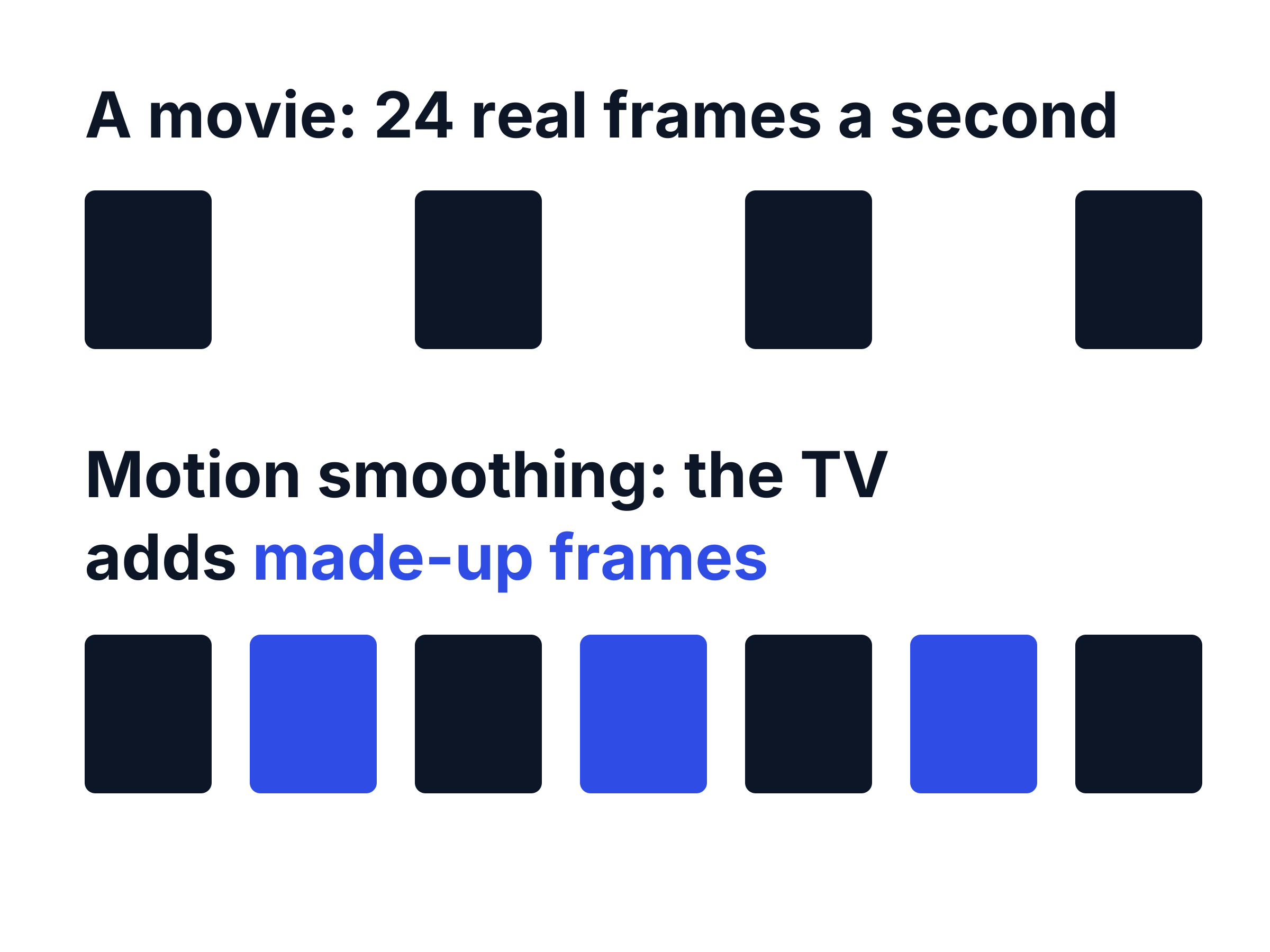
Most movies are filmed at 24 frames per second, while a TV screen refreshes 60 or 120 times a second. Motion smoothing, also called motion interpolation or MEMC, fills that gap by guessing what the in-between frames should look like and adding them. The picture moves more smoothly, but it stops looking like film.
Video recorded at a high frame rate has the same extra-smooth look, and daytime soap operas were once recorded that way, which is where the name comes from. TV makers switch it on because it reduces blur in fast motion. Samsung’s support page says its setting comes switched to Auto.
How to turn off motion smoothing on your TV
The quickest fix is Filmmaker Mode, if your TV has it. The UHD Alliance, the industry group behind it, says Filmmaker Mode turns motion smoothing off and keeps the original frame rate. It also turns off sharpening and noise reduction, so the picture may look a little softer until your eyes adjust. If your TV has no Filmmaker Mode, try Movie or Cinema mode, then check the motion setting below.
TV brand
- Setting to turn off, and where
- Auto Motion Plus (Picture Clarity on some models). Settings > Picture > Expert Settings > Auto Motion Plus Settings, then choose Off.
TV brand
- Setting to turn off, and where
- TruMotion. Settings > All Settings > Picture > Advanced Settings > Clarity > TruMotion, then choose Off.
TV brand
- Setting to turn off, and where
- Motionflow. Look in the picture settings, under Motion on Google TV models, and choose Off. Sony’s menus vary by model.
TV brand
- Setting to turn off, and where
- Action Smoothing. While watching, press the star button, then Picture settings > Customize Picture > Expert settings. Choose Off or Low. Not every Roku TV has it.
TV brand
- Setting to turn off, and where
- Look in the advanced picture settings for Motion Enhancement, Motion Clearness, MEMC or Motion Smoothing. The name varies by model.
TV brand
- Setting to turn off, and where
- Look in Picture > Advanced Picture for Clear Action, or Smooth Motion Effect on older models.
TV brand
- Setting to turn off, and where
- Start a show, open the TV’s picture settings, then Advanced Settings, and look for a motion or action smoothing option.
Swipe table to view all columns.Scroll table to view all columns.
| TV brand | Setting to turn off, and where |
|---|---|
| Samsung | Auto Motion Plus (Picture Clarity on some models). Settings > Picture > Expert Settings > Auto Motion Plus Settings, then choose Off. |
| LG (2021 and later) | TruMotion. Settings > All Settings > Picture > Advanced Settings > Clarity > TruMotion, then choose Off. |
| Sony | Motionflow. Look in the picture settings, under Motion on Google TV models, and choose Off. Sony’s menus vary by model. |
| Roku TV (TCL, Hisense and others) | Action Smoothing. While watching, press the star button, then Picture settings > Customize Picture > Expert settings. Choose Off or Low. Not every Roku TV has it. |
| TCL and Hisense with Google TV | Look in the advanced picture settings for Motion Enhancement, Motion Clearness, MEMC or Motion Smoothing. The name varies by model. |
| Vizio | Look in Picture > Advanced Picture for Clear Action, or Smooth Motion Effect on older models. |
| Fire TV models (Insignia, Toshiba, Amazon Omni) | Start a show, open the TV’s picture settings, then Advanced Settings, and look for a motion or action smoothing option. |
For more detail, see Samsung’s motion smoothing page, LG’s TruMotion page or Roku’s motion settings guide.
Change the setting on the TV itself. A Roku or Fire TV stick, Apple TV, cable box or game console doesn’t have this setting, because the smoothing happens inside the TV.
Off, Low or Custom: which setting to choose
Choose Off for movies and TV shows. It’s the closest match to how they were filmed. With smoothing off, slow pans can show a slight stutter, called judder. That’s normal for 24 fps film, and you’d see it in a cinema too.
If the judder bothers you, try the gentlest setting instead of turning smoothing fully back on: Custom on Samsung with Judder Reduction turned down and Blur Reduction at zero, Cinematic Movement on LG, or Low on a Roku TV.
On an Apple TV, turn on Match Frame Rate (Settings > Video and Audio > Match Content). It sends movies to the TV at their original 24 fps, so slow pans look as steady as the film allows.
Why the soap opera effect keeps coming back
- You switched inputs or picture modes. Many TVs keep separate picture settings for each input and each picture mode, so turn smoothing off in every one you use.
- A software update changed it. Updates can reset picture settings. TechRadar reported a Roku TV update that switched motion smoothing on for some owners.
- The TV was reset. A factory reset, or choosing a default picture mode again, brings back the out-of-the-box settings.
When motion smoothing is worth leaving on
Some people like it for sports, where it can make fast action look clearer. Roku suggests Action Smoothing for fast-moving scenes and Low or Off for movies. If you watch both, a low setting is a reasonable middle ground.
For video games, use your TV’s Game mode instead. Making up frames takes processing time, which can add a delay between your controller and the screen.
Projectors do it too. BenQ notes that modern TVs and projectors use motion smoothing, often called motion enhancement or image interpolation, so the same fix applies.
Problems that look like the soap opera effect
What you see
- What it more likely is
- Flicker, which has different causes. See the TV flickering guide.
What you see
- What it more likely is
- Judder, the opposite problem. Try a low smoothing setting rather than Off.
What you see
- What it more likely is
- The video itself was made at a high frame rate, which is common on YouTube. Your TV’s setting won’t change it.
What you see
- What it more likely is
- Motion blur from the screen itself. Smoothing reduces it a little, at the cost of the soap opera look.
Swipe table to view all columns.Scroll table to view all columns.
| What you see | What it more likely is |
|---|---|
| The picture flickers, flashes or pulses | Flicker, which has different causes. See the TV flickering guide. |
| Slow pans stutter or jerk | Judder, the opposite problem. Try a low smoothing setting rather than Off. |
| Only one video looks too smooth | The video itself was made at a high frame rate, which is common on YouTube. Your TV’s setting won’t change it. |
| Moving objects leave trails or look blurry | Motion blur from the screen itself. Smoothing reduces it a little, at the cost of the soap opera look. |
Common questions
Do all TVs have motion smoothing?
Most mid-range and high-end TVs do, and many budget models have a simpler version. A few have no setting for it at all. If you can’t find one in the picture settings, your TV may not have it, or may adjust it automatically.
Is motion smoothing the same as a 120Hz refresh rate?
No. The refresh rate is how many times a second the screen can update. Motion smoothing is the TV making up frames to fill those updates. Marketing labels with numbers like 240 often mix the two, so they can be higher than the screen’s real refresh rate.
Does turning off motion smoothing make the picture worse?
No. It doesn’t change resolution, brightness or color, only how motion looks.
Related guides
When the picture flickers, flashes or pulses instead of looking too smooth.
When the TV has sound or a light but no picture.
See the refresh rate a computer screen is really running at, and compare frame rates.
Sources
- Motion smoothing and the soap opera effect on Samsung TVs
Samsung US · Auto Motion Plus and Picture Clarity names, the menu path, the Auto default, and the Off and Custom options with Blur Reduction and Judder Reduction. Checked November 20, 2026.
- TruMotion
LG Canada · TruMotion menu path for 2021 and later webOS TVs, the Off option and Cinematic Movement. Checked November 20, 2026.
- How to reduce motion blur in fast-moving scenes on your Roku TV system
Roku · Action Smoothing path, the advice to use Low or Off for movies, and that not all Roku TV models have the setting. Checked November 20, 2026.
- About Filmmaker Mode
UHD Alliance · Filmmaker Mode turns off motion smoothing, sharpening and noise reduction, and keeps the source frame rate. Checked November 20, 2026.
- Turn on Match Dynamic Range or Match Frame Rate on your Apple TV
Apple · Match Frame Rate setting path and matching 24 fps content. Checked November 20, 2026.
- Turn Off Motion Smoothing When Watching Movies
BenQ · Motion smoothing on modern TVs and projectors, and its other names. Checked November 20, 2026.
- The latest Roku TV update has turned on motion smoothing for some users, and they're not happy
TechRadar · A Roku TV software update switching motion smoothing on for some owners. Checked November 20, 2026.