

When a computer screen is black but the computer seems to be on, three quick checks usually tell you where the problem is. First, make sure the computer is actually running. Second, shine a flashlight at the screen to see whether a faint picture is hiding behind it. Third, connect an external monitor or TV to see whether the computer is sending a picture at all.
Each answer points to a different fix, from a keyboard shortcut that wakes the display to a screen or cable that needs repair. The steps below follow that order, with separate sections for Windows, Dell, HP, Lenovo, MacBook and desktop PCs.
If the computer got wet, was dropped, or smells hot, stop here. Unplug it, leave it off, and follow the water damage or pressure damage guide instead, because powering it on again can make the damage worse.
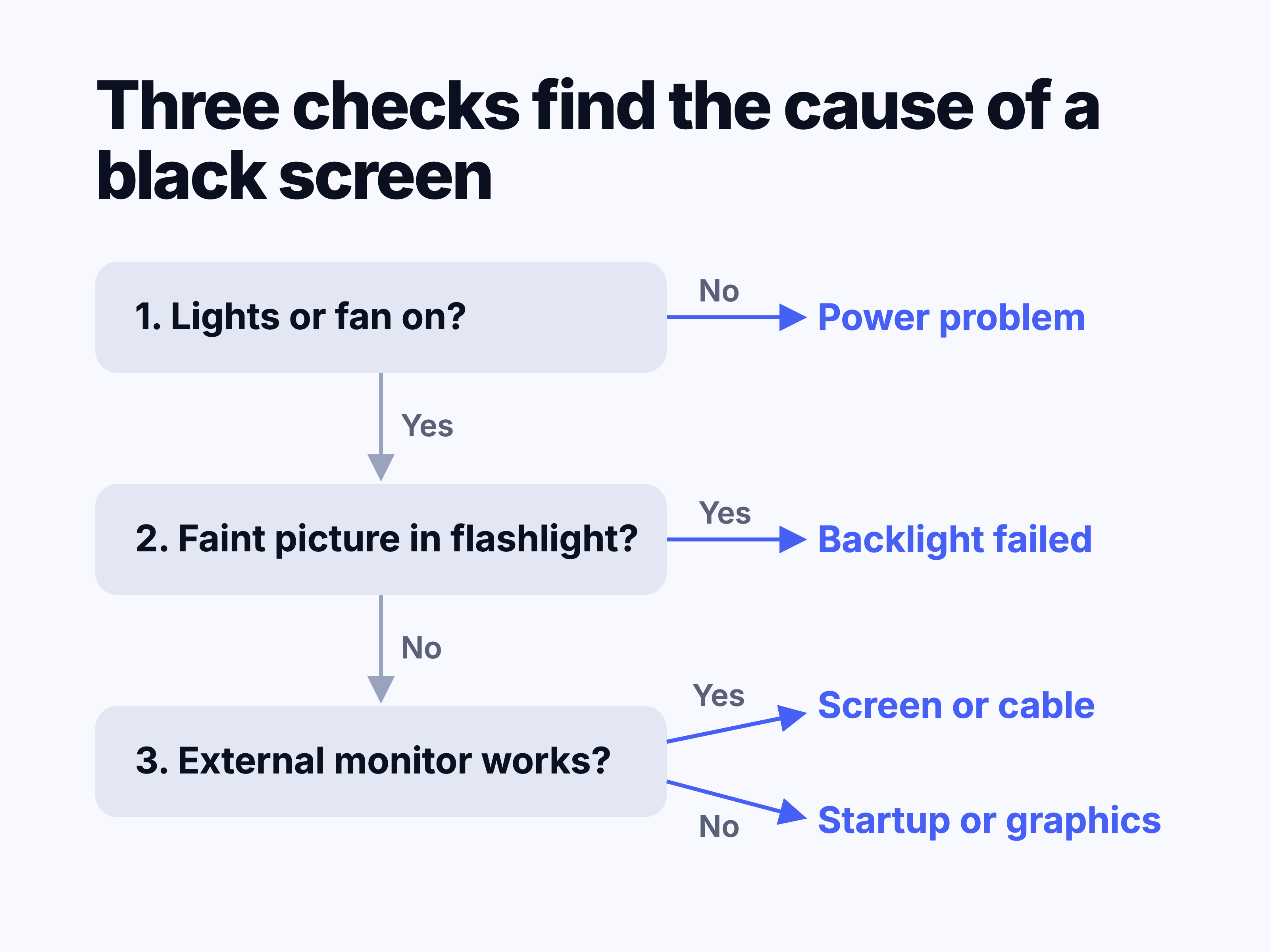
Check whether the computer is on or the screen is off
A black screen and a computer that never started look the same at first. The difference matters, because a computer with no power needs a charger or power fix, not a screen fix.
Signs your computer is running behind the black screen
Look and listen for signs of life. A power light, a fan spinning, a keyboard backlight or a startup sound all mean the computer has power. Press Caps Lock a few times. If its light turns on and off, Windows or macOS may be running normally and only the picture is missing.
| What you notice | What it suggests |
|---|---|
| No lights, no fan, no sound | A power problem, not a screen problem. Start with the next section. |
| Lights or fan on, screen completely black | The screen isn’t getting a picture, or its light is off. Try the flashlight test. |
| Caps Lock light turns on and off | The computer is running. The screen, its cable or Windows is the likely cause. |
| A light blinks in a pattern, or the computer beeps | The computer is reporting a startup error. See the section for your brand. |
| The logo appears, then the screen goes black | The hardware started. Look at Windows or macOS first. |
If nothing happens when you press the power button
Plug in the charger and check that it’s seated firmly at both ends. Try a different outlet. If the charger has a light, make sure it’s on. Leave a laptop with a fully drained battery charging for a while before you try again.
Next, try a hard reset, which drains leftover power that can stop a laptop from starting. Unplug the charger, disconnect everything else, then hold the power button for 15 to 20 seconds before you reconnect the charger and turn it on. That’s the method Dell describes, and HP and Lenovo give similar steps. Some laptops with a built-in battery have a tiny reset hole on the bottom instead, which you press with a straightened paper clip. If the laptop still shows no sign of power, the problem is the charger, battery or power circuit rather than the screen.
Flashlight test: backlight failure or no signal
Most laptop screens and many monitors are LCDs. They have a layer that makes the picture and a separate light behind it. If that light fails, the picture is still there, just too dark to see. A flashlight can reveal it.
Turn the room lights down. Shine a phone flashlight at the screen from a few inches away, at an angle, and move it slowly across the screen. Look for the faint outline of the desktop, icons or the mouse pointer.
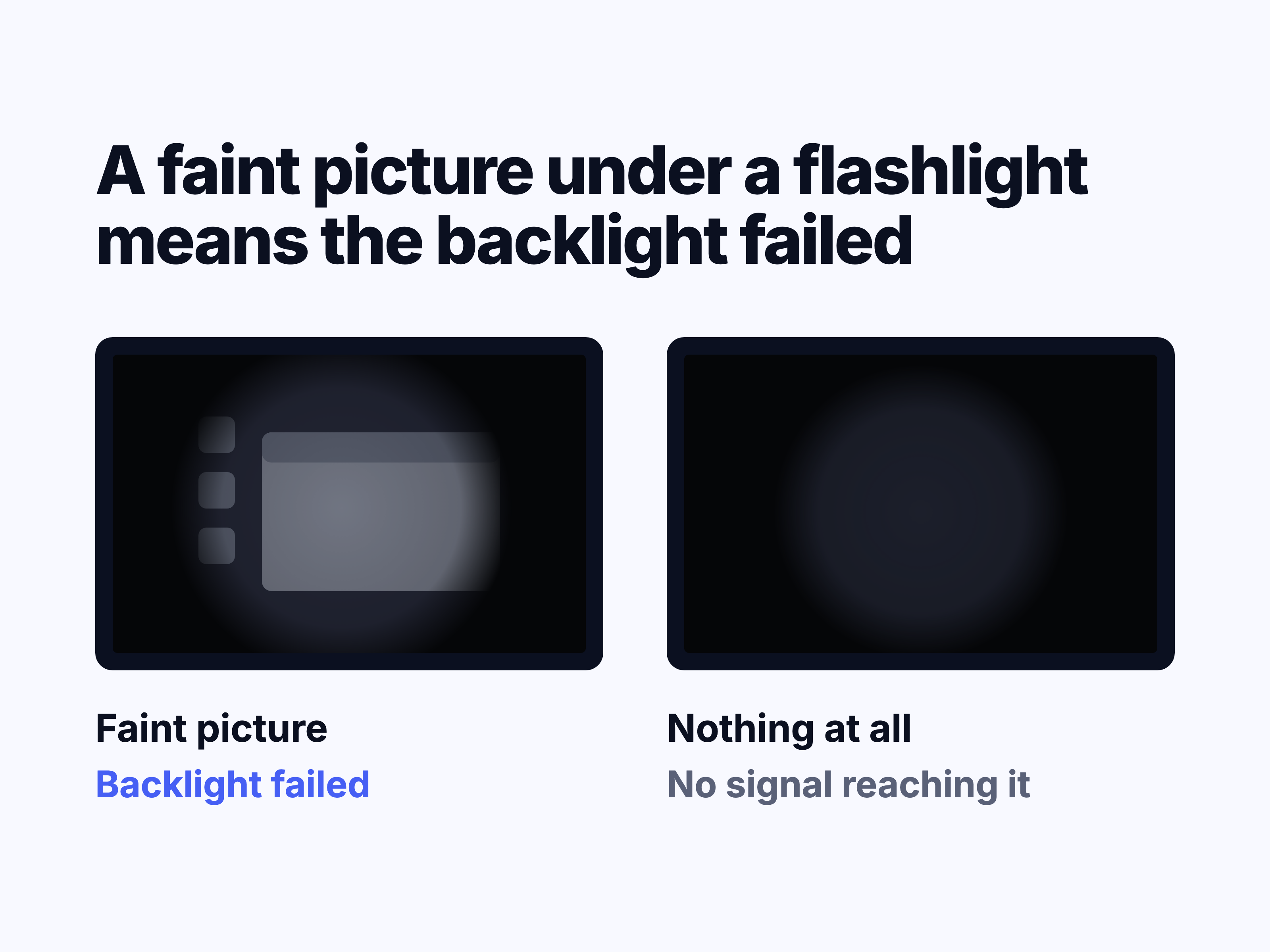
A faint image under the flashlight means the backlight failed
If you can make out the desktop or a window, the computer is working and sending a picture. The light behind the screen isn’t turning on. First rule out the simple causes: press the brightness-up key several times, and on a laptop try it while holding the Fn key. If the picture stays dim, the backlight, its power supply or the display cable is the likely fault, and that’s a repair.
In the meantime, you can usually keep working and back up your files by connecting the laptop to an external monitor.
No image at all means the screen isn’t getting a signal
If the screen stays fully black even under the flashlight, the screen isn’t receiving a picture. The cause can be Windows or a graphics driver, the display cable, the screen itself, or a computer that never finished starting. The next sections separate those, starting with the fixes you can do without opening anything.
An OLED screen has no backlight, so this test doesn’t apply. A black OLED screen means no picture is reaching it, or the screen has failed.
Black screen after Windows starts or after an update
If you saw the maker’s logo or the Windows loading circle before the screen went black, the hardware started and Windows is the place to look. These steps go from quickest to most involved.
Before you reset anything, find your BitLocker recovery key. Many Windows laptops encrypt the drive with BitLocker. Microsoft lists BIOS or firmware changes among the things that can make Windows ask for the 48-digit recovery key at startup. On another device, sign in at aka.ms/myrecoverykey with the Microsoft account used on the laptop and note the key. Microsoft says it can’t recreate a lost key, and without it you may lose access to your files.
Reset the graphics driver with Win+Ctrl+Shift+B
Press the Windows key, Ctrl, Shift and B at the same time. This restarts the graphics driver without closing your apps. Microsoft says you should hear a beep or see the screen flicker if it worked. It’s worth trying first, because a graphics driver that stopped responding can leave a working computer with a black screen.
If the picture comes back, check the screen for damage once you can see it. The dead pixel test and the screen color test show full-screen colors that make lines, dark patches and dead pixels easy to spot.
Make sure Windows isn’t sending the picture to another screen
Windows can be set to show the picture only on a second screen, which leaves the laptop’s own screen black. This often happens after the laptop was last used with a monitor or projector. Press the Windows key and P, then press P again and Enter. Each press moves to the next mode (PC screen only, Duplicate, Extend, Second screen only), so repeat it a few times with a pause between, until the picture appears.
If you only see a cursor after signing in
A mouse pointer on a black screen after you sign in usually means Windows started but the desktop and taskbar, which come from a program called Windows Explorer, didn’t load. Press Ctrl+Shift+Esc to open Task Manager. Find Windows Explorer, right-click it and choose Restart. If it isn’t listed, choose File, then Run new task, type explorer.exe and press Enter.
A blinking text cursor in the top-left corner before Windows loads is a different problem. Microsoft explains that it means the computer can’t find a drive to start from, which points to the drive or startup settings rather than the screen.
If the black screen started after a Windows update
An update can install a graphics driver that doesn’t work with your computer. To undo it, you need Safe Mode, which starts Windows with only basic drivers.
- Hold the power button for 10 seconds to turn the computer off, then turn it on. Repeat this two or three times until Windows opens its recovery screen.
- Choose Troubleshoot, then Advanced options, then Startup Settings, then Restart.
- Press F5 to start in Safe Mode with Networking.
- Open Device Manager, expand Display adapters, right-click the graphics adapter and choose Roll back driver. If that option is grayed out, choose Update driver instead.
If that doesn’t help, Microsoft suggests System Restore from the same Advanced options menu, which returns Windows to an earlier point without deleting your files. Dell also describes removing the latest quality update from its recovery menu, which you open by pressing F12 at startup.
If the screen stays black after sleep
When a laptop wakes from sleep to a black screen, press a key or tap the power button once, then wait a few seconds. If nothing appears, try Win+Ctrl+Shift+B. If the computer doesn’t respond at all, hold the power button until it turns off, then start it again.
If it happens often, install the latest graphics driver and BIOS update from your laptop maker’s support site rather than relying on Windows Update alone. Some makers have documented the problem on specific models. Lenovo, for example, has a support article on black screens after sleep or hibernate. Save your BitLocker recovery key before a BIOS update.
Test a black laptop screen with an external monitor
Connecting the laptop to a monitor or TV is the clearest way to tell a broken screen from a computer problem. Dell notes that an external monitor bypasses the laptop’s own screen. Connect the cable while the laptop is on, set the monitor or TV to the right input, then press Windows key + P and choose Duplicate.
On a USB-C laptop, use a port that supports video. Not every USB-C port does, and our guide to connecting a laptop to a USB-C monitor explains how to tell.
If the external monitor works
The laptop is running and its graphics are fine. The problem is the laptop’s screen, the cable that connects it, or the hinge area the cable runs through. A screen that flickers back on when you move the lid points toward the cable or hinge. A screen that stays black whatever you do points toward the screen or its backlight.
You can keep using the laptop with the monitor while you decide on a repair. Our guide to using a laptop with a broken screen covers setting it up and backing up your files.
If both screens stay black
If neither screen shows anything, the laptop either isn’t finishing its startup or its graphics aren’t working. Look for blinking lights or beeps, then run your maker’s built-in hardware test, described in the brand sections below. Those tests run before Windows starts, so they work even when Windows is the problem.
If the laptop screen went black while it was running
A screen that goes black in the middle of use while the laptop keeps running, with music still playing or the fan still on, is usually one of three things. A graphics driver may have stopped responding, which Win+Ctrl+Shift+B can reset. The laptop may have overheated. Or the display cable may be losing contact, which often shows up as a screen that goes black when the lid moves.
If it happened right after a knock, a drop or pressure on the lid, check the laptop screen pressure damage guide before you keep using it.
How to fix a black screen on a Dell laptop
Start with the Windows steps above if the Dell logo appears before the screen goes black. Dell’s own black screen guide also suggests pressing the brightness-up key repeatedly (holding Fn on some models) and disconnecting docks, USB drives and other devices before restarting.
Run Dell’s built-in LCD self-test
Dell laptops have a screen test built in that runs without Windows, so it shows whether the screen itself can display colors.
- Shut the laptop down completely and wait for every light to go off. Disconnect external monitors, docks and USB devices, but keep the charger plugged in.
- Press and hold the D key, then press the power button. Keep holding D until colors appear on the screen.
- Watch the screen cycle through black, white, red, green and blue. Look for lines, spots, dark areas or flicker.
- Press Esc to stop the test, or hold the power button for 10 seconds.
If the colors look clean, Dell says the screen hardware is working and the problem is likely Windows, a graphics driver or a setting. If you see lines, dark areas or distortion, or nothing appears at all, the screen or its cable may need service.
If the keyboard lights up but the screen stays black
A lit keyboard means the laptop has power, so the question is whether the screen or the laptop is at fault. Run the LCD self-test above. If its colors appear, the screen works and the problem is in Windows or the graphics driver. If the test screen stays black too, connect an external monitor. A picture on the monitor points to the laptop’s screen or cable, and no picture anywhere points to a startup or motherboard problem.
What Dell’s power light codes mean
When a Dell laptop can’t start, the power or battery light may blink amber and white in a pattern, such as four amber flashes followed by three white ones. Each pattern points to a different part, and Dell lists the meanings in each model’s manual, so count the flashes and look up your model. Dell also has a system board test: with the laptop off, hold the M key and press the power button. If the battery light stays off, Dell says no fault was found. If it flashes amber, it’s showing an error code to look up.
HP laptop screen is black? Start with a hard reset
Before anything else, give the laptop a few minutes. HP notes that a computer installing an update can show a blank screen for a while, and turning it off in the middle of an update can cause new problems.
How to hard reset an HP laptop
- Turn the laptop off and unplug the charger.
- Remove any discs or memory cards and disconnect everything else, including USB drives, docks and external monitors.
- With the charger unplugged, hold the power button for about 15 seconds.
- Plug the charger back in and turn the laptop on.
This drains leftover power and clears temporary hardware states that can stop the screen from coming on. If the screen is still black, connect an external monitor. A picture there points to a graphics driver or the laptop’s screen, and HP suggests updating the graphics, chipset and BIOS drivers. No picture on either screen points to the laptop itself.
Run HP PC Hardware Diagnostics at startup
HP laptops include a hardware test that runs before Windows. Turn the laptop on and immediately press Esc about once a second until a menu appears, then press F2. HP’s diagnostics guide says that if the tool isn’t in that menu, you can run it from a USB drive instead. The memory and startup tests are the most useful for a black screen, because a failed memory module is one of the things that can stop a laptop from showing anything.
What blinking Caps Lock lights mean on an HP laptop
If the laptop won’t start, the Caps Lock or Num Lock light may blink in a pattern of long and short flashes, red and white on models with a two-color light. HP’s guide to startup light codes lists what each pattern means. For example, three long red blinks followed by two short white ones point to a possible memory failure, and three long red followed by three short white point to a possible graphics failure. Codes vary between models, so check the pattern against HP’s guide for your laptop, and contact HP before opening it if it’s under warranty.
When a Lenovo laptop or ThinkPad screen stays black
Lenovo’s black screen steps follow the same pattern as other brands: drain the power, check with an external monitor, then run Lenovo’s own hardware test. The steps apply to IdeaPad, Legion, Yoga and ThinkPad models, with small differences in how you reset them.
If the Lenovo screen won’t turn on
Unplug the charger and disconnect everything else. On ThinkPads and other models with a built-in battery, Lenovo describes pressing the emergency reset hole on the bottom of the laptop with a straightened paper clip. On models without a reset hole, hold the power button for at least 10 seconds. Then reconnect the charger and turn the laptop on.
If the fan spins or the keyboard lights up but the screen stays black, Lenovo says the problem may be with the display. Connect an external monitor to see which part is at fault. Some IdeaPad and Legion models also have a small Novo button or pinhole that opens a recovery menu with BIOS and system recovery options.
Run Lenovo Diagnostics
Lenovo’s diagnostic tools include a version that runs from a USB drive, so it works when Windows won’t start. You create the drive on another computer with Lenovo’s download, then start the Lenovo laptop from it to test the memory, storage and other hardware. Lenovo’s support site also lists the steps and any known black screen fixes for your exact model when you enter its serial number.
If your MacBook screen is black
Press the brightness-up key a few times first, since a screen turned all the way down looks black. Then Apple’s first step is to press and hold the power button (the Touch ID button on newer MacBooks) for up to 10 seconds until the Mac turns off, then turn it on again.
If your MacBook is running but the screen stays black
If you hear a startup sound or see the keyboard light up but the screen stays black, Apple suggests starting up from macOS Recovery. If the Mac reaches Recovery, use Disk Utility to repair the startup disk, then restart. If the screen is still blank after that, reinstall macOS from Recovery, which keeps your files.
If the Mac can’t reach Recovery at all, Apple says a Mac with Apple silicon or a T2 chip might need its firmware revived or restored, which requires a second Mac. If you use an external display, make sure that display isn’t the problem. Connecting a monitor to a MacBook is also the quickest way to tell a broken screen from a Mac that isn’t starting.
Resets that work on Apple silicon and Intel MacBooks
Online fixes often suggest resetting the SMC or NVRAM. Those only apply to older Intel-based MacBooks. Apple says the SMC resets automatically on a Mac with Apple silicon, so restarting or shutting down is all you need.
| MacBook | What to try |
|---|---|
| Apple silicon (M1 and later) | A normal restart or shutdown. There’s no separate SMC or NVRAM reset. |
| Intel, without a T2 chip | Reset the SMC: shut down, hold Shift-Control-Option on the left side and the power button for 10 seconds, release, then turn it on. |
| Intel, any model | Reset NVRAM: turn it on and immediately press and hold Option-Command-P-R together. |
| Intel with a T2 chip | Apple lists separate SMC steps. Follow its SMC reset article for these models. |
To check whether your Mac has Apple silicon, look up its model year: MacBooks from late 2020 onward mostly use Apple silicon. Apple’s startup key combinations page lists the NVRAM reset under Intel-based Macs only.
Run Apple Diagnostics to check the hardware
Apple Diagnostics tests the hardware and gives a reference code if it finds a problem. On a Mac with Apple silicon, press and hold the power button until you see the startup options, release it, then press and hold Command-D until the Mac restarts. On an Intel-based Mac, turn it on and immediately hold the D key, or Option-D if D doesn’t work.
If liquid was involved, don’t keep restarting it. Our MacBook screen water damage guide and MacBook pressure damage guide cover what to do instead.
PC turns on but the monitor shows nothing
On a desktop, the computer and the screen are separate, so check the monitor and its connection before you suspect the PC.
Check the monitor’s input and cable
Make sure the monitor is on. Most show a power light and a brief “no signal” message when nothing is connected. Use the monitor’s buttons to choose the input you’re using (HDMI, DisplayPort or USB-C). Unplug the cable at both ends and push it back in firmly, then try a different cable or port if you have one.
Testing the monitor with another device, like a laptop or game console, settles whether the monitor works. Testing the PC with a TV does the same for the computer.
Plug the monitor into the graphics card, not the motherboard
If your PC has a separate graphics card, plug the monitor into the ports on the card. They sit lower on the back of the case, usually in a horizontal row. The video ports higher up belong to the motherboard and usually don’t work when a graphics card is installed. It’s an easy mistake after moving a PC or adding a card.
Listen for beeps and check the motherboard lights
If the fans spin but nothing appears on any screen, the PC may not be finishing its startup. Many desktops beep or light up a small indicator on the motherboard to say which part failed, often the memory or graphics card. Dell notes that these codes are listed in each model’s manual, and the same is true for other PC makers and motherboard brands. Write down the pattern before you look it up.
What it costs to fix a black laptop or computer screen
What you pay depends on which part failed. A Windows or driver problem costs nothing to fix. A backlight, display cable or screen is a repair, and a motherboard or graphics failure is the most expensive.
Laptop screen replacement cost
In the US, Fixr puts professional laptop screen replacement at $70 to $550, depending on the laptop and the type of screen. A basic LCD part costs about $139 to $199, while high-end OLED screens can cost $300 to $500 or more, and touchscreens add another $50 to $100. Motherboard repair or replacement runs $250 to $700, and repair shop labor is typically $80 to $150 an hour.
A loose or damaged display cable usually costs less than a new screen, since the part is cheaper, but it still takes skilled labor because the screen often has to come apart. Ask the shop to confirm which part failed before you approve a quote.
MacBook screen repair cost
MacBook screens usually cost more than typical laptop screens, and Apple quotes out-of-warranty screen repairs for each model rather than publishing one price. With AppleCare+, Apple lists a service fee of $49 to $99 for a damaged Mac screen or enclosure, depending on the model. For a sense of parts prices, BGR found that a genuine replacement display for the MacBook Neo costs $307.12, or $219.12 after returning the old screen.
Check your warranty or AppleCare before you pay
A screen that failed on its own, with no damage, may be covered by the manufacturer’s warranty. Accidental damage usually isn’t. Dell notes that cracks and spider-web patterns are typically not covered under its standard warranty. Protection plans like AppleCare+ cover accidental damage for a set fee, and some credit cards and home insurance policies include device coverage.
Before you contact the maker or a repair shop, document the problem with photos or a short video of the black screen, the lights and any error codes. It makes a warranty claim easier and helps the technician find the cause faster.
Common questions
Why does my screen go black for a second and then come back?
Short blackouts usually come from the graphics driver briefly restarting, which Windows does when the driver stops responding, or from a cable losing contact for a moment. On an external monitor, a loose or low-quality HDMI or DisplayPort cable is a common cause. If it happens often, update the graphics driver from your laptop or graphics card maker and try a different cable. If it happens when you move a laptop’s lid, the display cable inside the hinge may be wearing out.
Why is my second monitor black when the laptop screen works?
Press Windows key + P and choose Extend or Duplicate, since Windows may be set to show the picture on the laptop only. Then check that the monitor is set to the right input. On a USB-C laptop, the port has to support video, and not every USB-C port does.
Does a black screen mean my hard drive or SSD has failed?
Not usually. A failed drive more often shows a message such as “no bootable device” or a blinking text cursor in the corner, rather than a fully black screen. If the screen or graphics are the problem, your files are normally still on the drive, and you can often reach them by connecting an external monitor or by having a repair shop copy them.
Can a virus or malware cause a black screen?
It’s possible but much less likely than a driver, update or hardware problem. If you can start in Safe Mode and the black screen went away after a recent download, run a full scan with Microsoft Defender or another antivirus program before going back to normal startup.
Is it worth repairing an old laptop with a black screen?
Compare the repair quote with what the laptop is worth and what a replacement would cost. A display cable or screen repair on a laptop you otherwise like is often worth it. A motherboard repair on an older laptop often isn’t. Our repair or replace guide walks through the decision.
Related guides
Connect a monitor or TV to keep working and back up your files.
When the screen went black or dark after a knock, drop or pressure on the lid.
Decide whether a repair quote is worth paying.
Check a screen for dead pixels, lines and dark patches once the picture is back.
Sources
- Troubleshooting blank screens in Windows
Microsoft · Windows logo key + Ctrl + Shift + B, Windows logo key + P, restarting Windows Explorer, the 20-second forced restart, Safe Mode through Recovery, rolling back a graphics driver, System Restore, and the blinking cursor that means no boot device was found. Checked November 27, 2026.
- BitLocker recovery overview
Microsoft Learn · What can trigger a BitLocker recovery prompt, including BIOS or UEFI firmware upgrades and clearing the TPM. Checked November 27, 2026.
- Find your BitLocker recovery key
Microsoft · Where the recovery key is stored (Microsoft account at aka.ms/myrecoverykey, work or school account, a printout or USB drive) and that Microsoft can’t recreate a lost key. Checked November 27, 2026.
- How to fix a black screen or display issues on a Dell laptop
Dell · Brightness keys, the external monitor check, disconnecting devices, restarting Explorer from Task Manager, turning off Fast Startup, and uninstalling the latest quality update from SupportAssist OS Recovery (F12). Checked November 27, 2026.
- How to test your Dell laptop screen (LCD built-in self-test)
Dell · Hold D and press the power button to run the screen test, what clean colors or lines mean, Esc to stop, and the enhanced test’s light codes. Checked November 27, 2026.
- Laptop screen not working: fix common display issues
Dell · Hard reset steps, including holding the power button for 15 to 20 seconds. Checked November 27, 2026.
- Computer won’t POST: POST error on laptops and desktops
Dell · Beep and light codes are listed in each model’s manual, and the M-BIST system board test (hold M and press power). Checked November 27, 2026.
- HP PCs: computer starts but the screen remains blank (Windows 11, 10)
HP · Waiting a few minutes in case an update is running, the hard reset (about 15 seconds holding power with the adapter unplugged), and the external monitor check. Steps confirmed from the company’s search listing on November 27, 2026; the page did not load for a direct check.
- HP notebook PCs: computer beeps or a light blinks during startup
HP · Long red and short white Caps Lock blinks, with examples for memory and graphics failures. Steps confirmed from the company’s search listing on November 27, 2026; the page did not load for a direct check.
- HP PCs: testing for hardware failures
HP · Starting HP PC Hardware Diagnostics UEFI by pressing Esc repeatedly at power on, then F2, or from a USB drive. Steps confirmed from the company’s search listing on November 27, 2026; the page did not load for a direct check.
- Troubleshooting no power issues
Lenovo · The emergency reset hole on models with a built-in battery, and holding the power button for at least 10 seconds on models without one. Steps confirmed from the company’s search listing on November 27, 2026; the page did not load for a direct check.
- Black screen issue when coming out of suspend or hibernate
Lenovo · Lenovo’s article on black screens after sleep or hibernate on some models. Steps confirmed from the company’s search listing on November 27, 2026; the page did not load for a direct check.
- Lenovo Diagnostic Solutions: diagnose and fix
Lenovo · Lenovo’s diagnostic tools, including the UEFI diagnostics that run from a bootable USB drive without Windows. Steps confirmed from the company’s search listing on November 27, 2026; the page did not load for a direct check.
- If your Mac starts up to a blank screen
Apple · Forcing a shutdown, starting up from macOS Recovery, Disk Utility, reinstalling macOS, reviving firmware, and checking an external display. Checked November 27, 2026.
- If your Mac doesn’t turn on
Apple · Power checks, holding the power button for about 10 seconds, unplugging accessories, and that Macs with Apple silicon don’t need an SMC reset. Checked November 27, 2026.
- Use Apple Diagnostics to test your Mac
Apple · Starting Apple Diagnostics with Command-D from startup options on Apple silicon, or the D key on an Intel-based Mac. Checked November 27, 2026.
- Reset the SMC of your Mac
Apple · SMC reset steps for Intel-based Macs, and that the SMC resets automatically on Macs with Apple silicon. Checked November 27, 2026.
- Mac startup key combinations
Apple · Option-Command-P-R to reset NVRAM, listed for Intel-based Macs only. Checked November 27, 2026.
- AppleCare
Apple · AppleCare+ service fees for damaged Mac screens or enclosures. Checked November 27, 2026.
- Laptop repair cost in the US: a 2026 guide
Fixr · US price ranges for laptop screen replacement ($70 to $550), motherboard repair ($250 to $700) and labor ($80 to $150 an hour), published November 2, 2026. Checked November 27, 2026.
- Here’s how much the MacBook Neo’s display costs to replace
BGR · AppleCare+ screen fee and genuine display part price for the MacBook Neo, April 20, 2026. Checked November 27, 2026.